
For importing data into Ruby you can use Import ETL processes – Security Import, Order Import, Tuple Import and Price Import.
Let us choose Order Import process for example. When you click on the RUN button the File Selection window will pop-up. After you select the suitable file (use the Template file as an example for your file) and click on the APPLY button the process will import data into Ruby (in this case will book trades).
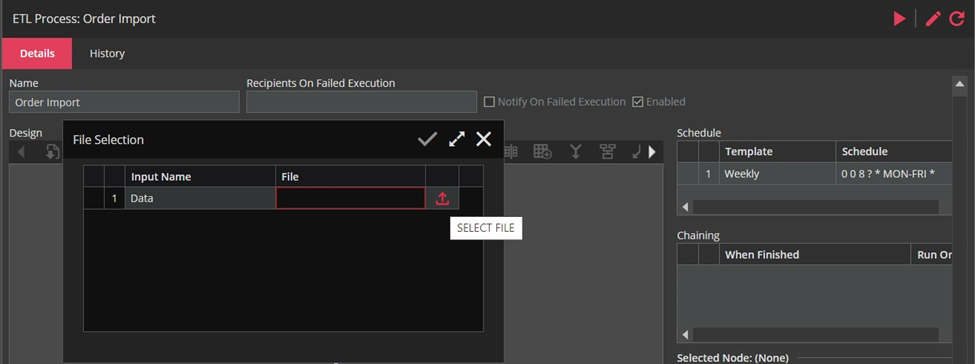
You can run other import processes in the same way from the ETL module.
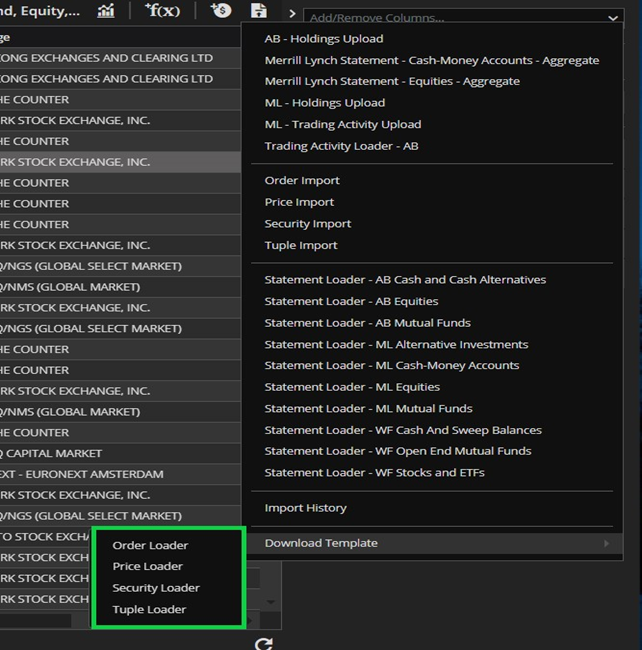
Another way to import data into Ruby is to run the import process from the import menu by clicking on the LOADERS icon in the menu on the right side of the report`s header that is marked green in the screenshot below along with import processes.
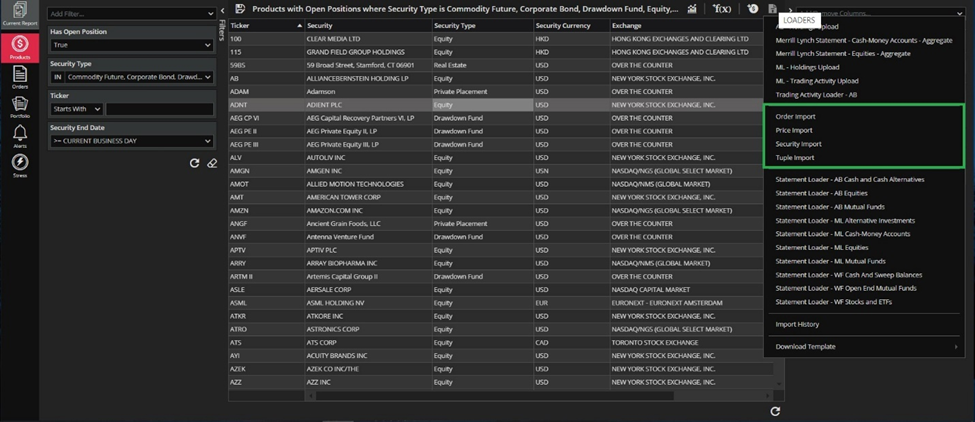
After you select one of the processes (say Order Import) the Order Import Drag & Drop form will pop-up and you can drag and drop your files or browse to files.
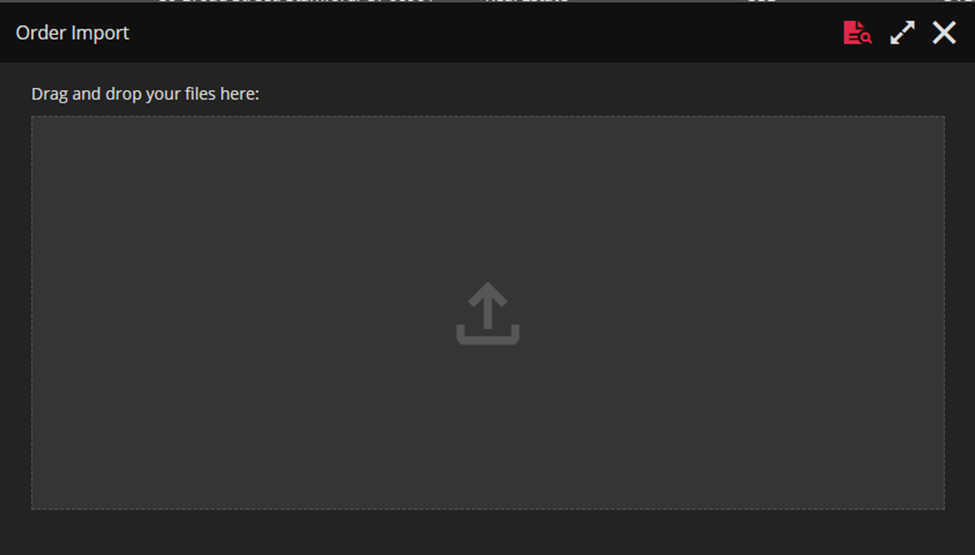
Notice that you can use this option to drop additional files to the Drag & Drop form while one file is already in processing. Also, dropping multiple files at once is allowed.
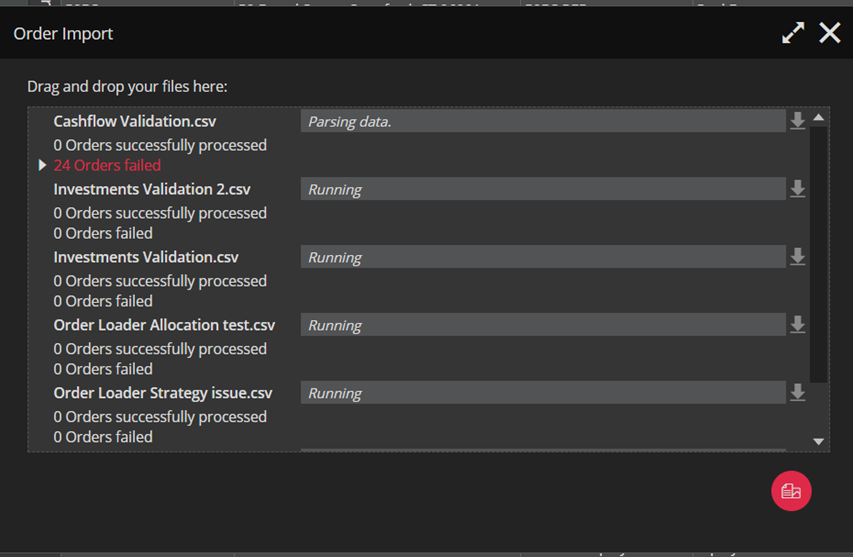
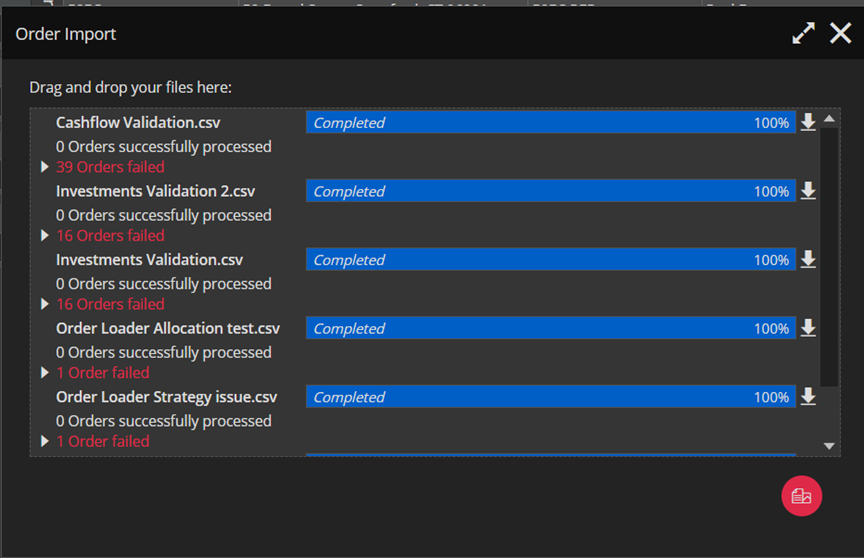
DOWNLOAD OUTPUT is shown right to every import attempt, as a down-facing arrow button as shown in the screenshot above and below. It is enabled only when processing is completed (for every attempt respectively).
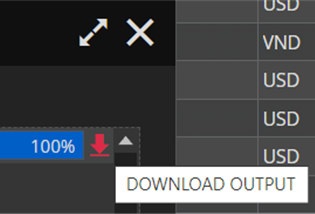
As you can see in the screenshot above if zero items are successfully processed, there should write “0 Orders successfully processed”. By default the summary will be collapsed, regardless if there were errors or not. When you expand the summary the messages will be popped in the manner shown in the screenshot below.

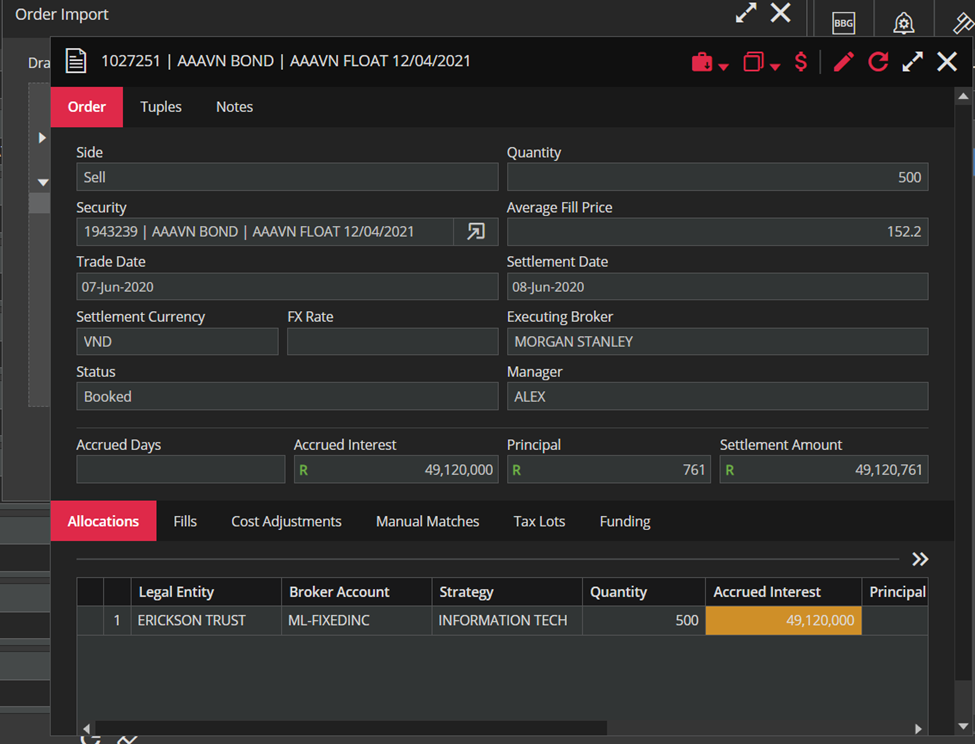
By clicking on the Order Id number the order form will appear. So, you can see the order you booked. Similarly, you can click on the Security Id number to open the form of the security you just created.

We can use Order Import not only to book (create) new trades but we can also update or cancel existing ones using actions “Update”, “Rebook” and “Cancel” respectively.
The “Update” action will allow you to enter only those fields that you want to update. Note that Quantity, Trade Price, Allocations, Fills And Funding cannot be updated.
We can Rebook or Cancel an order only with Order Id by using Order loader. That means that if we have Order Id, values for Identifier Code or Sid will be ignored, and order will be updated just by Order Id.
Also we can add, update or remove (delete) the rows of data from the tuple using Tuple Import and update securities using Security Import . The price can be added, updated or deleted using Price Import.
In case of Price and Tuple loader, actions Add and Update work like Add&Update. For example, if you try to enter price and you don’t know that that price exists in the database, if price is already exists, loader will do Update, and if price doesn’t exist, loader will do Add action.
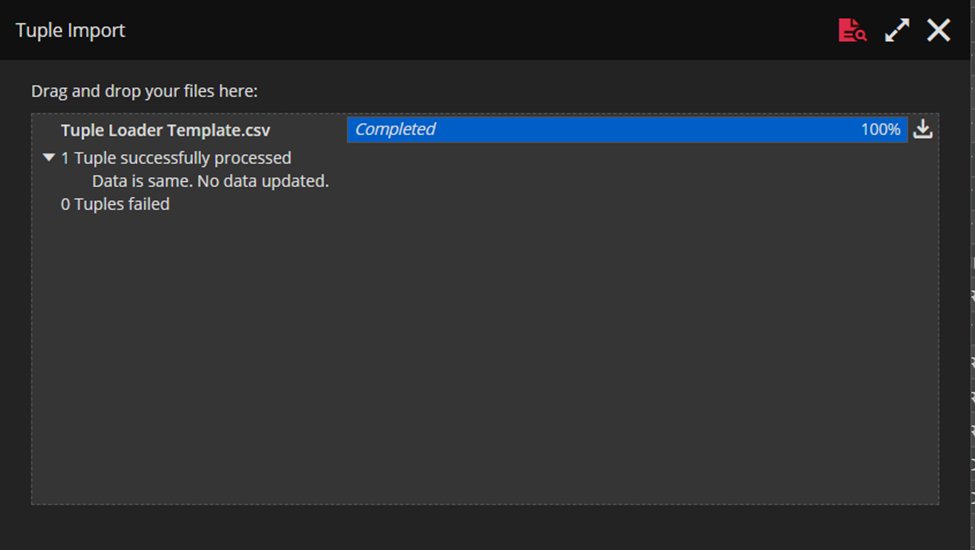
When user try to update the data with existing values, we should get an message that says “Data is same. No data updated.” This should be applied to all types of loaders.
Basically, all loaders work the same. We can download template file for all import processes by clicking on LOADERS button and selecting the desired template.
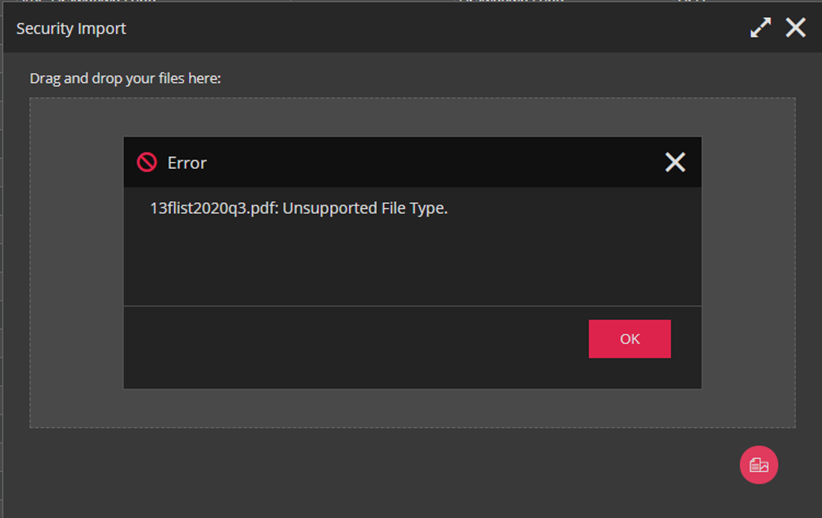
If we try to upload multiple files, and some of them are not in the supported format, then the following message pops-up.
Finally, it should be mentioned that you can run multiple import processes at once by opening them on different tabs.
Also, when user try to update the data with existing values, he/she will get a message that says “Data is same. No data updated.” This is applicable for all types of loaders.
