Different forms have different options offered in their header`s menu. We will guide you through some examples. Let`s talk about Mutual Options first.
Mutual options are: Edit, Refresh, Maximize, Close:

that will turn in to: Save, Revert, Maximize, Close if you are in Edit mode:

If you maximized the form, Maximize turned into Restore:

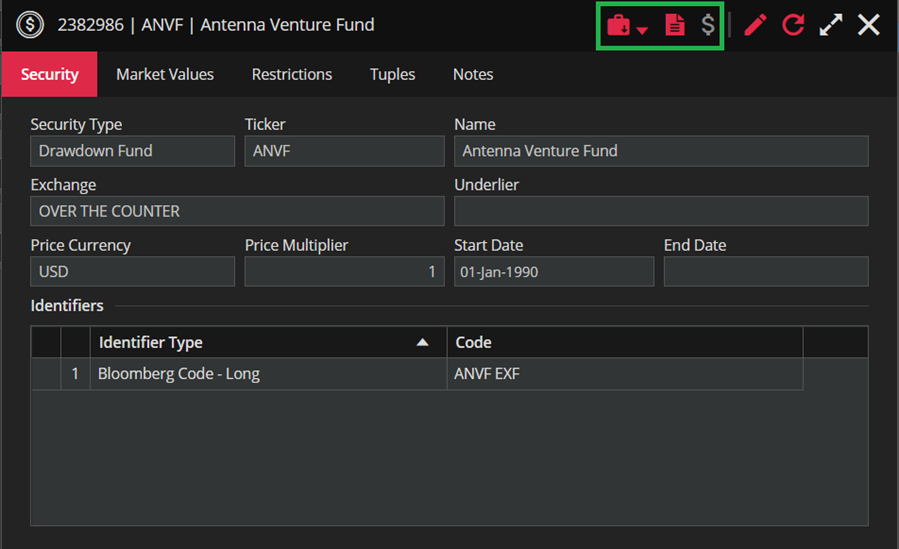
Now, let`s talk about the option that may differ from form to form. Take this Security form like and example:


This one will open a Create New Order form.

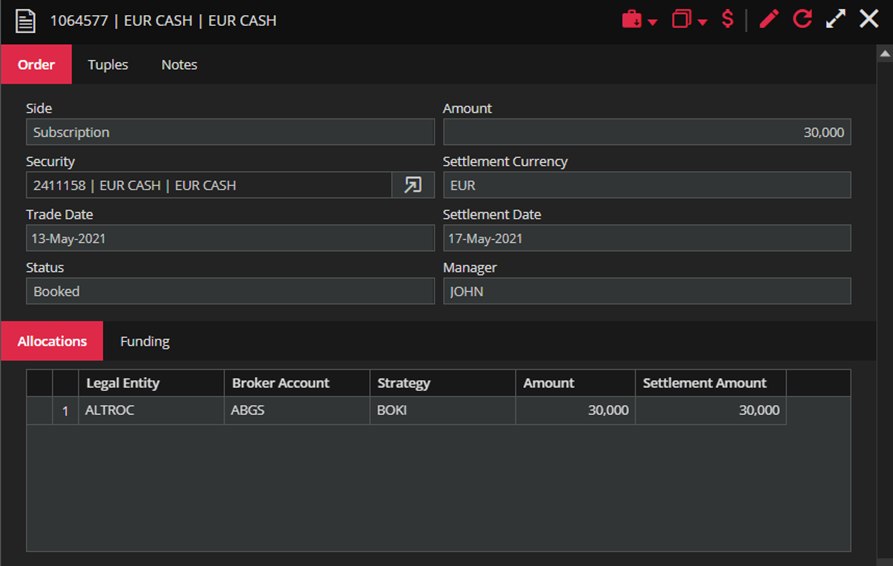
If you take a look at the Order form, the only difference is this one

Clicking the arrow will offer you three options: Copy/Copy Reverse and Book Repo.
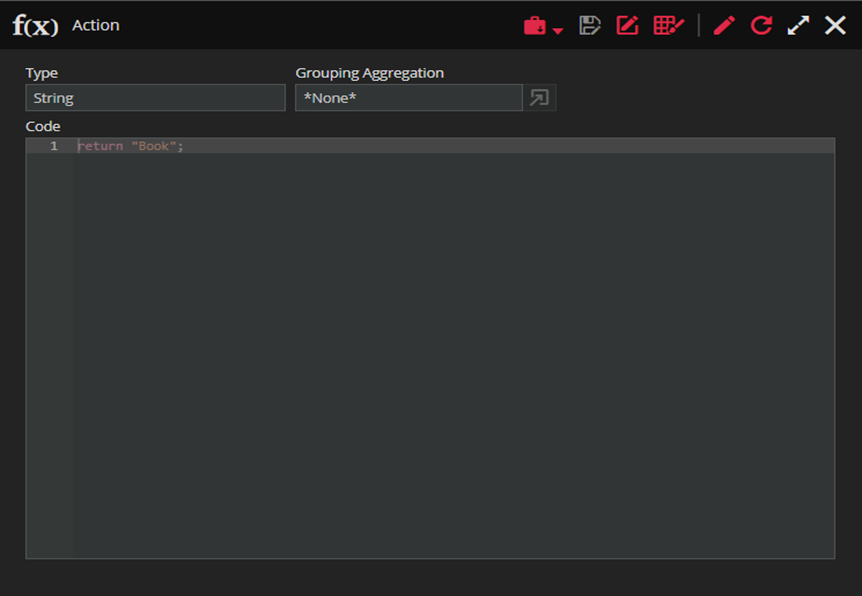
The calculated column form also, some additional options. Besides the Move to Briefcase that we already mentioned in the previous step, there are:

Save As (enabled when in edit form), Rename and Format options.
Loader Forms only have Maximize/Restore and Close, as well as nodes in ETL if you are not in the Edit mode.
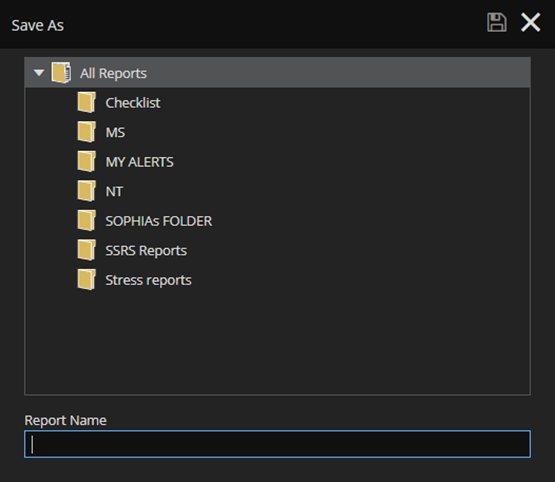
Save Report only offers Save and Close: