
The Bloomberg module allows the user to fetch specific data from Bloomberg directly.
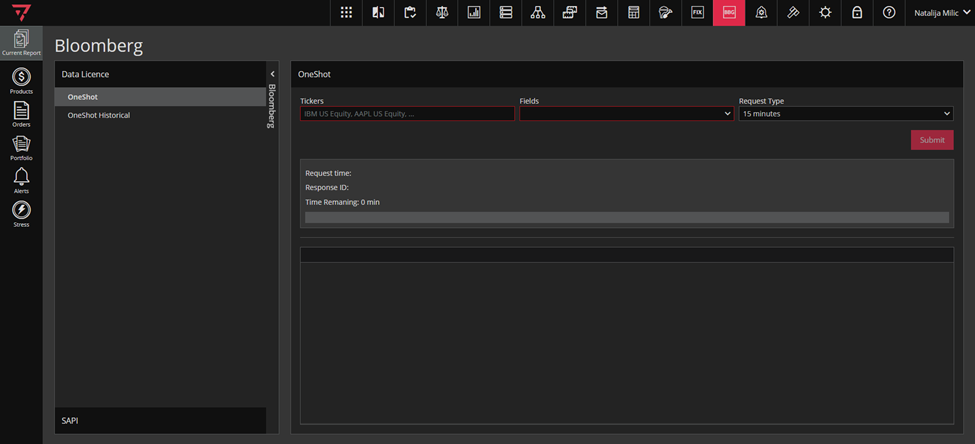
In order to fetch the data from Bloomberg, you can use Data Licence or SAPI within the Bloomberg module.
To access the Bloomberg module, click on the icon marked green in the singleton modules toolbar, as in the screenshot below.

As shown, to fetch the data, you will need the Ticker and also you will need to choose the list of fields you need to fetch the data for – this is the information you provide in the Fields dropdown. Request Type can be either 2 or 15 minutes.
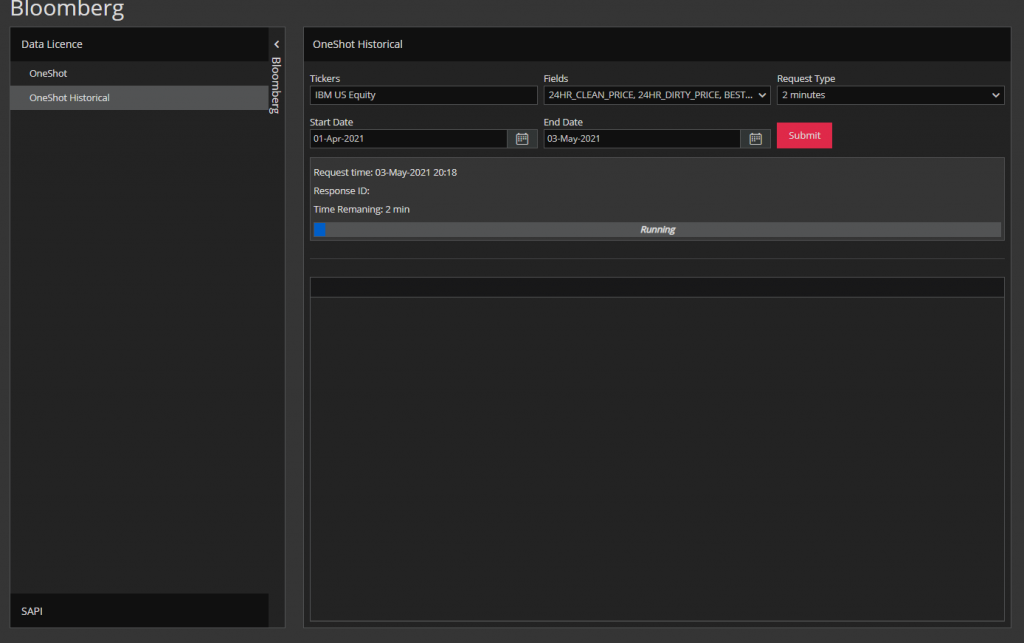
When you enter this data and click submit, you will be provided with information as shown below IF you have an actual Bloomberg ID.
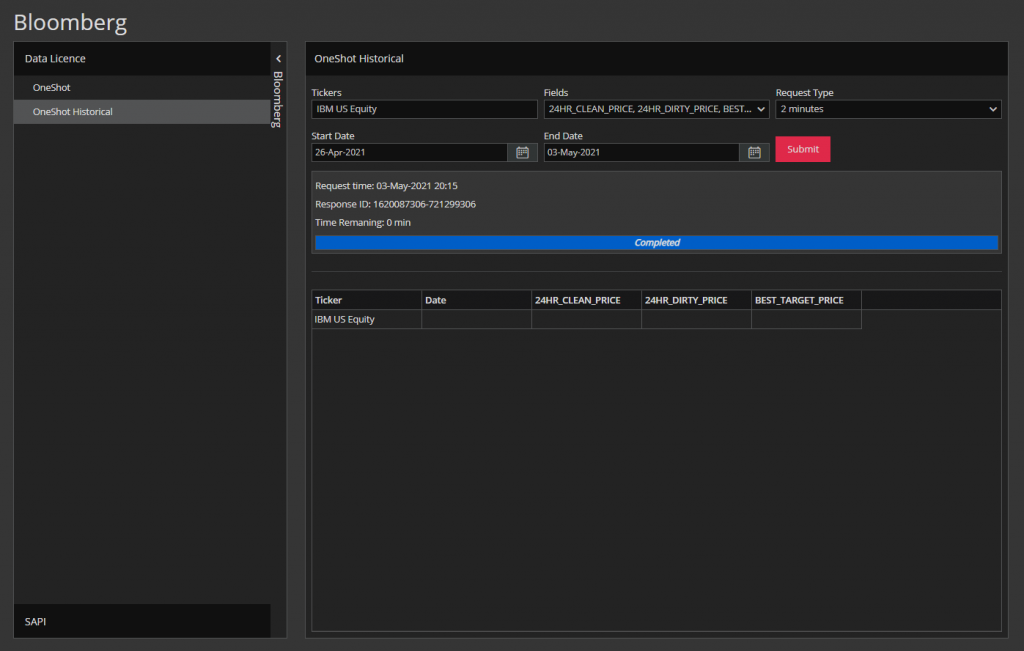
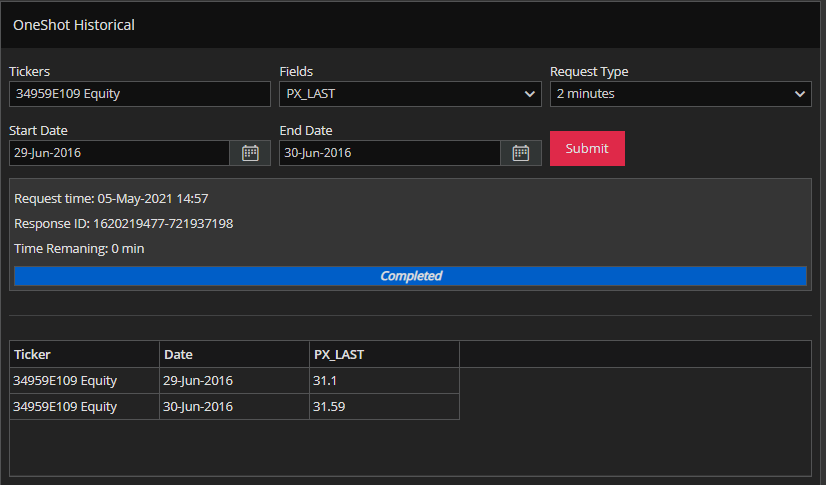
It should be mentioned that you do not have to use the Ticker to fetch the data for securities. You can use the CUSIP ID. Here are examples of how you get the data for Corporate Bonds and Equites, respectively.
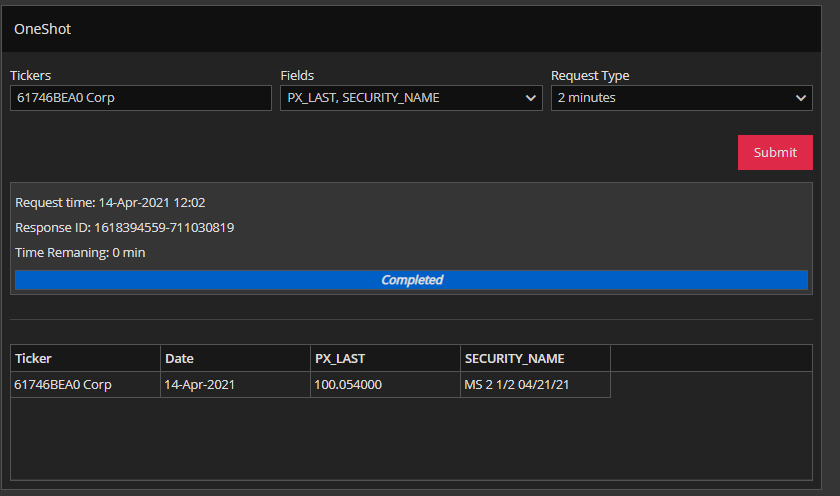
You can obtain data for multiple instruments by entering their Tickers (or something else) in the Tickers field separating them with a comma.
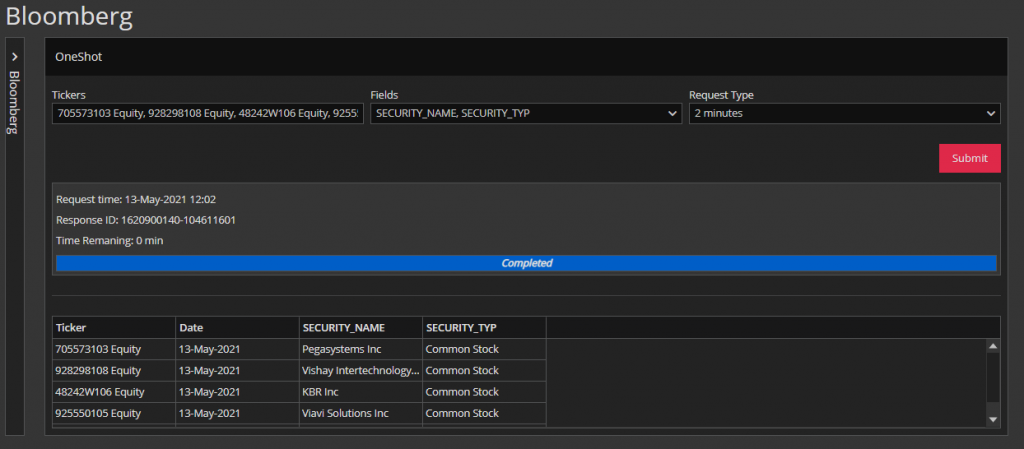
Then, you can export the data from the grid to an XLSX file if necessary.
SAPI provides you with 3 possibilities- Reference, Reference Historical and Entitlements.
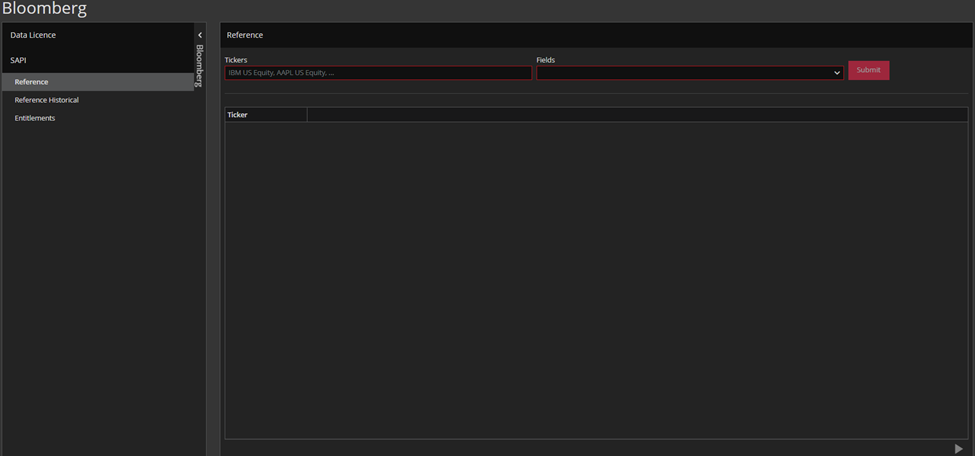
As we said earlier, to fetch the data, you will need the Ticker and also you will need to choose the list of the fields you need to fetch the data for – this information you provide in the Fields dropdown.
The only difference between Data License and SAPI, is that SAPI provides you with live information from Bloomberg.
When you entered the data, click submit, you will be provided with live data from BBG.
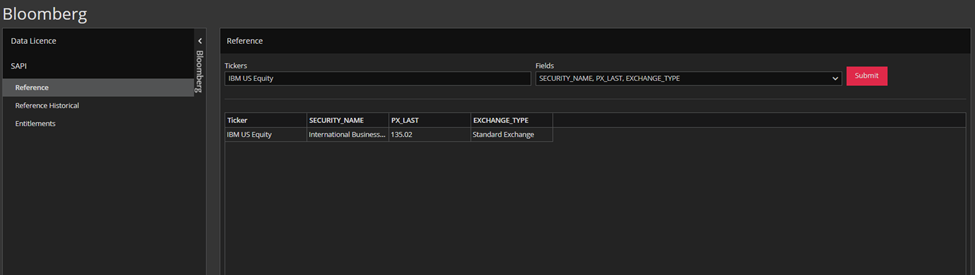
Also, you will notice that in SAPI, we do not have Request type.
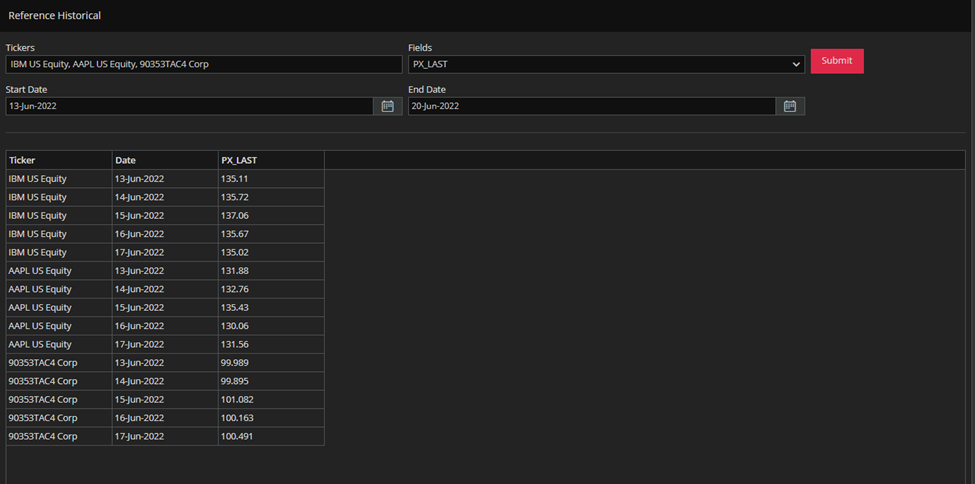
Reference Historical works in the same way as OneShot Historical, only difference is that, as we said earlier, SAPI provides us with live information.
The last one is Entitlements, but we don’t have the data to use it at the moment of writing this article, so we can explain it theoretically.
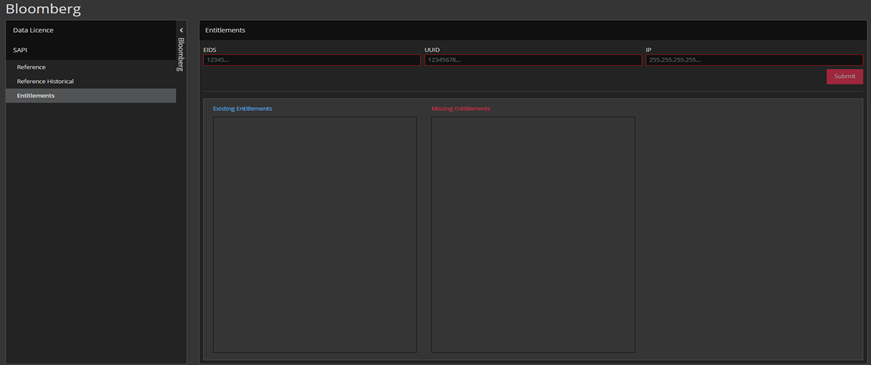
EIDS field we populate with ID’s of entitlements, UUID field with Users ID, and in the IP field we need to enter IP address of our machine.
After we enter the data, we need to click on Submit button.
If the entitlement is entitled, we should find it in left column- Existing Entitlements, otherwise it lands in the Missing Entitlements.
