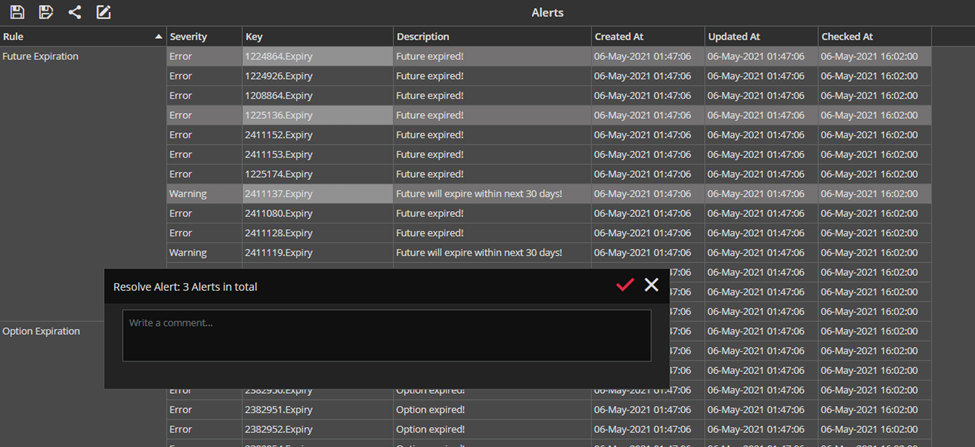
The Alerts Module lists all information (warnings, notifications) that met conditions you required in the Alert Setup, at one place.
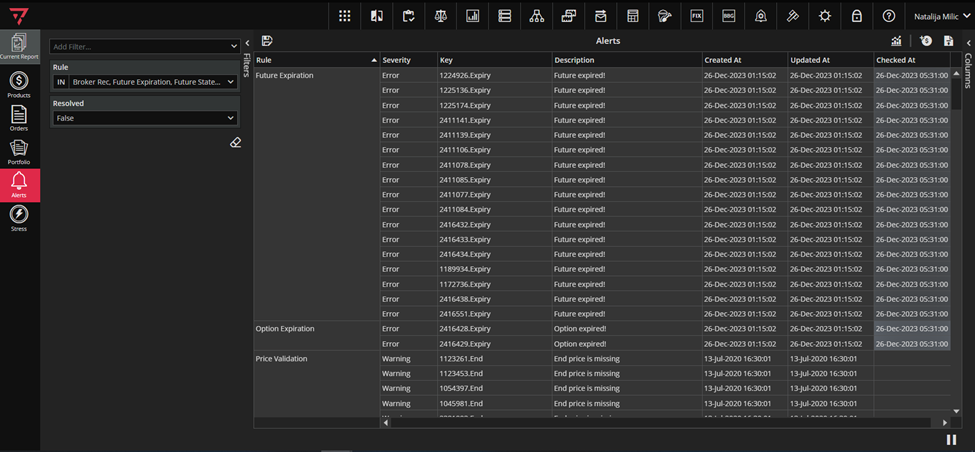
To access the Alerts module, click on the icon marked green in the basic modules toolbar, as in the screenshot below.

When you open the Alerts module, the module will look like in the screenshot below.
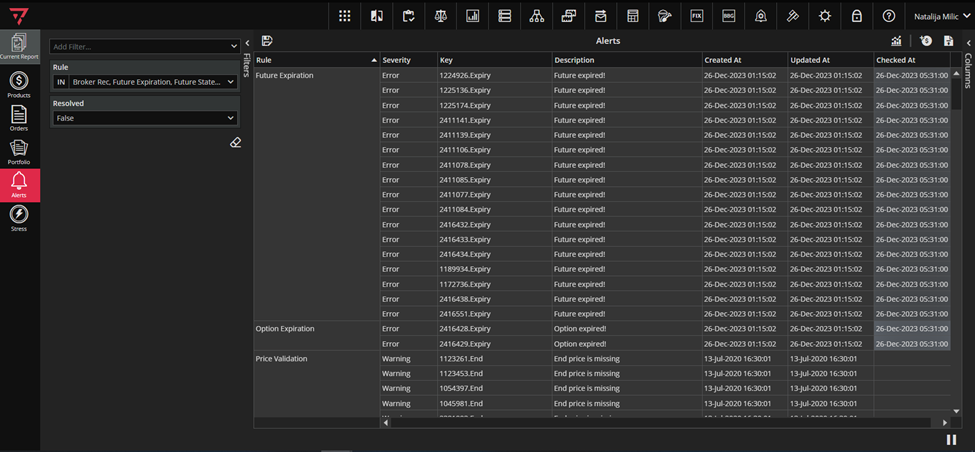
After setting the filters in the pre-filtering curtain, in the bottom right hand corner, you have the Start Streaming button that will start fetching data. If we wait a few seconds, the streaming will start on its own with the new filters.
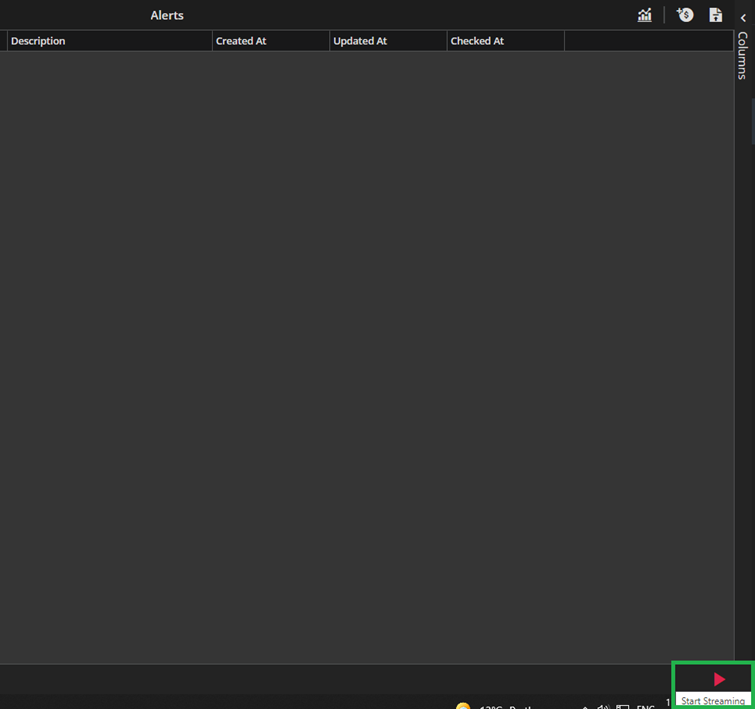


– These are the Start and Pause Streaming icons.
If you right click any row – in the first section of the context menu you will see two Alerts-related actions: Resolve and View Notes.
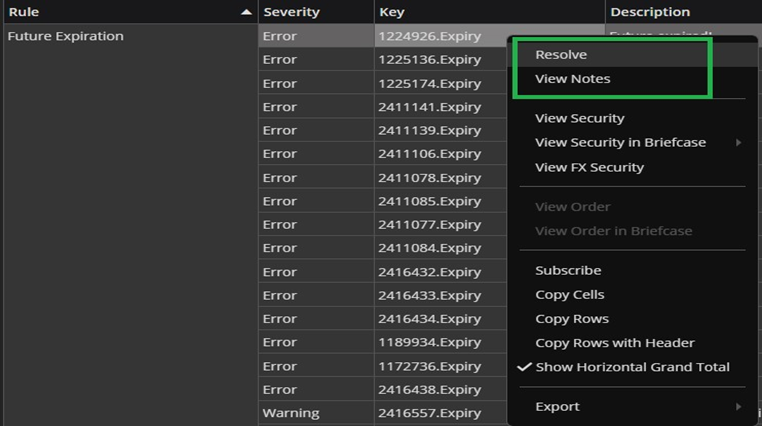
By using the Resolve action you can resolve the unresolved alerts. After clicking on Resolve the pop-up form appears where you can type in the comment.
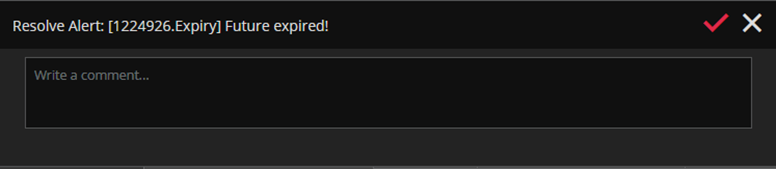
Obviously you don’t have to write a comment because the APPLY button is already enabled. After you click on APPLY button the selected alert will be resolved – meaning – it will not be present in the list anymore, once when retention period (see Alert Setup for more details) expires.
There is an option to add the comment by using View Notes action from the context menu too, in case you didn`t do it while resolving, or you want to add additional comments. After you click on View Notes, the Notes form pops-up and you will be able to type in the comment.
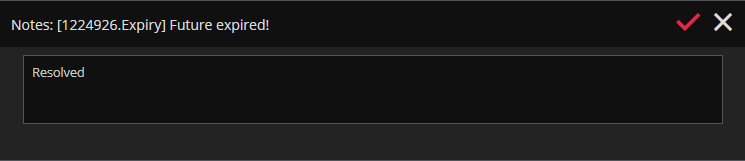
The Notes form will also pop-up after you double-click on the chosen row in the grid.
It is useful to know that both actions Resolve and View Notes support multi-select. Meaning that you can resolve multiple alerts at once by multi-selecting them and clicking Resolve.