
Once past the log-in screen, you will be taken to RUBY Explorer, a screen like the one below that shows all the reports that you have access to organized in a Windows desktop-like display. RUBY Explorer can be accessed any time by clicking on the icon with the 9 dots arranged in a 3×3 square highlighted in red in the picture below.
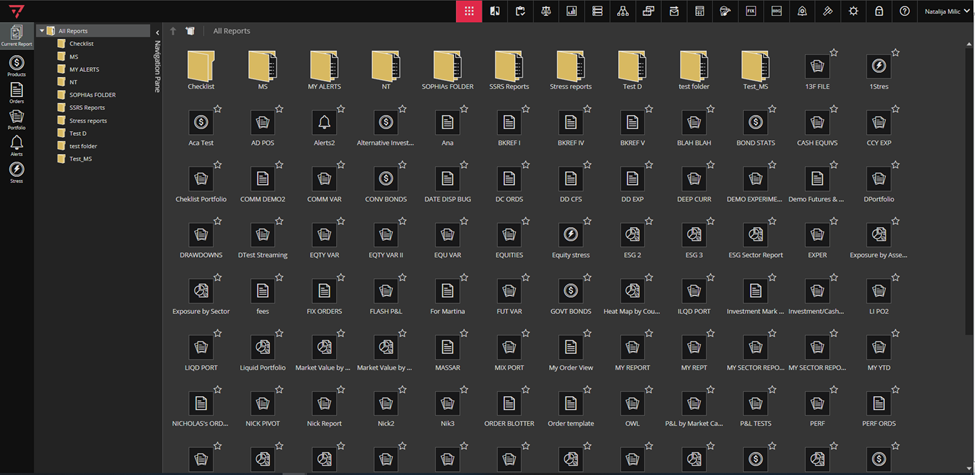
As mentioned, when you log in, Ruby takes you directly to the All Reports page. It is the first icon in the Singleton (Tool) modules toolbar.

From here, you can navigate to the various reports and folders, create new folders, or reorganize them.
Through the Navigation Pane, you can navigate through folders. It can be expanded or collapsed, the behaviour is saved on the User level, and it is initially expanded until you change it.
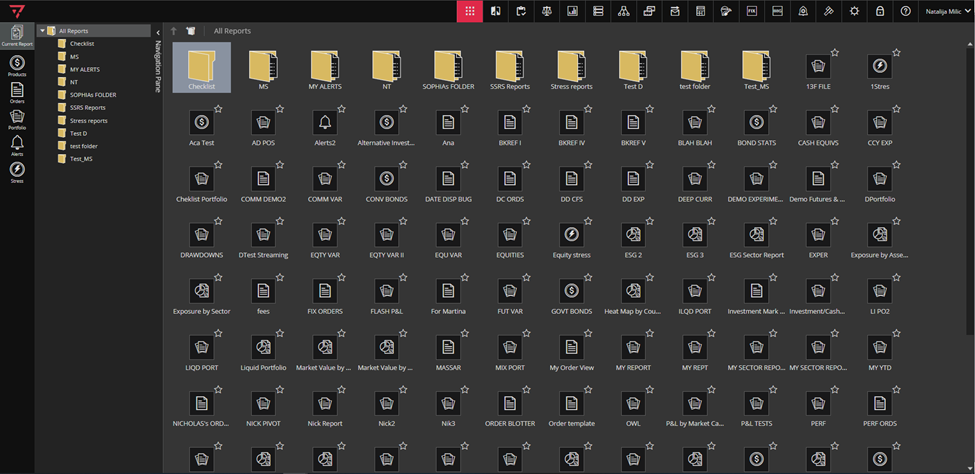
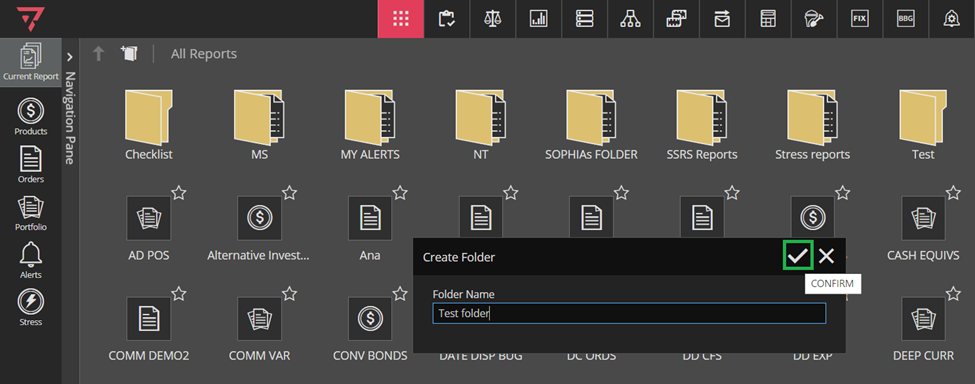
To create new folder, click the Create Folder icon in the top left side, marked with green in the screenshot below or right-click on All Reports from tree.
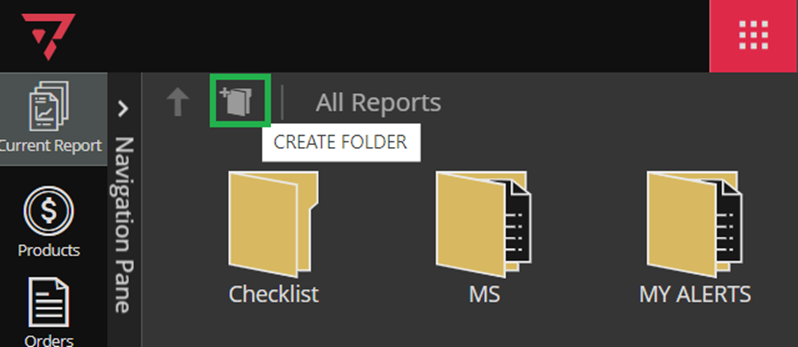
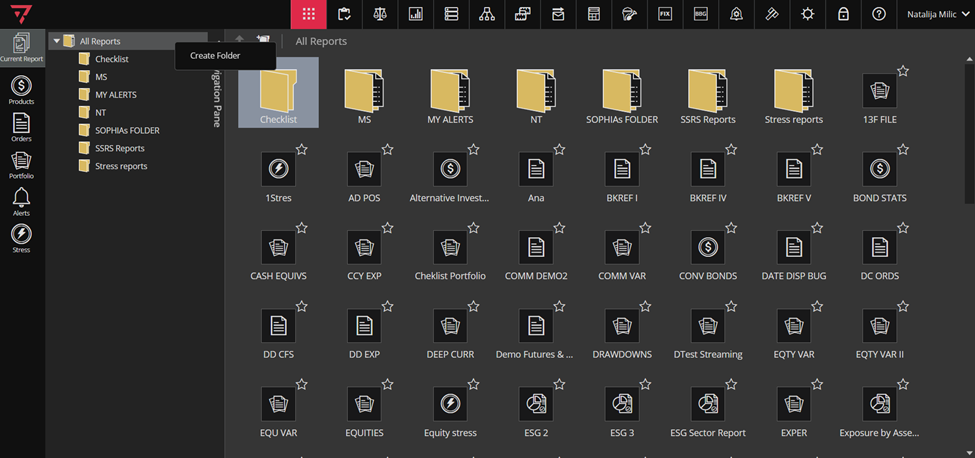
Type in the name of the folder and click confirm.
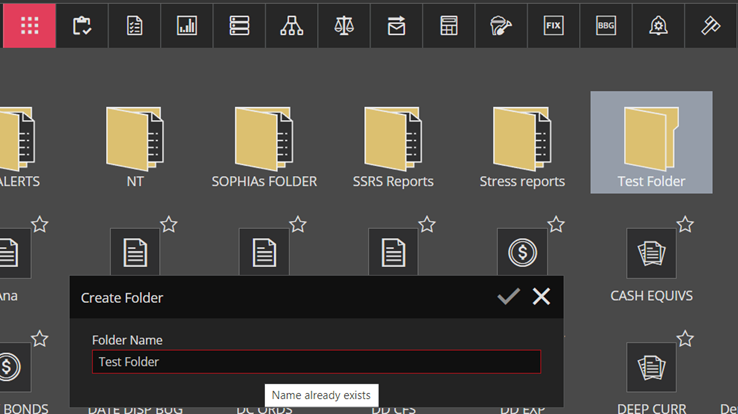
If there is already folder with the same name, Ruby will not allow you to save the duplicate.
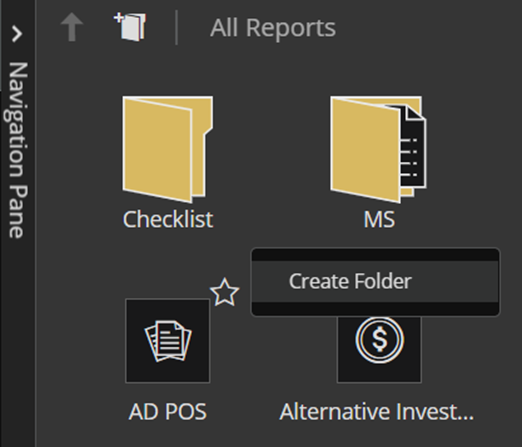
You can also create new folders if you right click on empty space between icons in All Reports (see screenshot below).
After creating a new folder, it will be shown in the tree. Folders in the tree are arranged alphabetically in ascending order.
Right click on the folder (either in the tree or in the right side of the screen) will offer the following options: Rename, Move and Delete. Please note that these are only enabled if you are the owner (creator) of the folder.
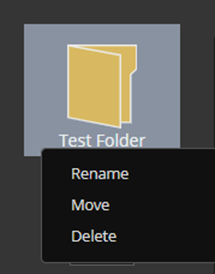
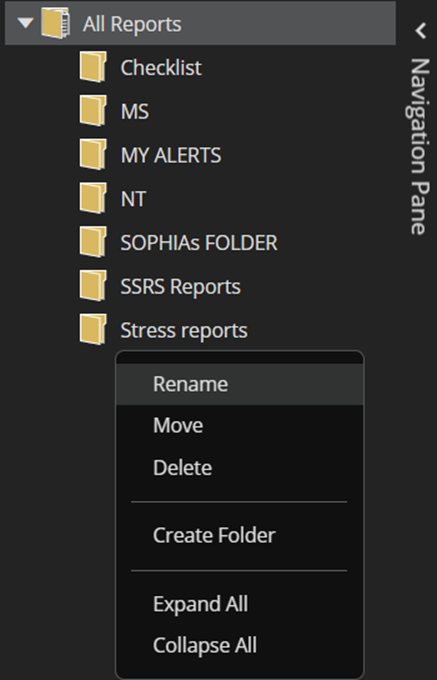
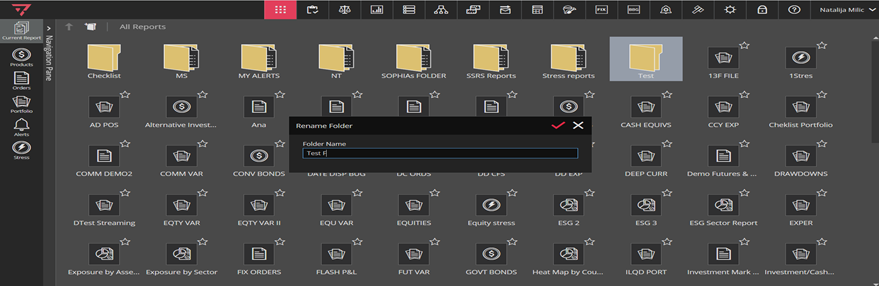
Rename:
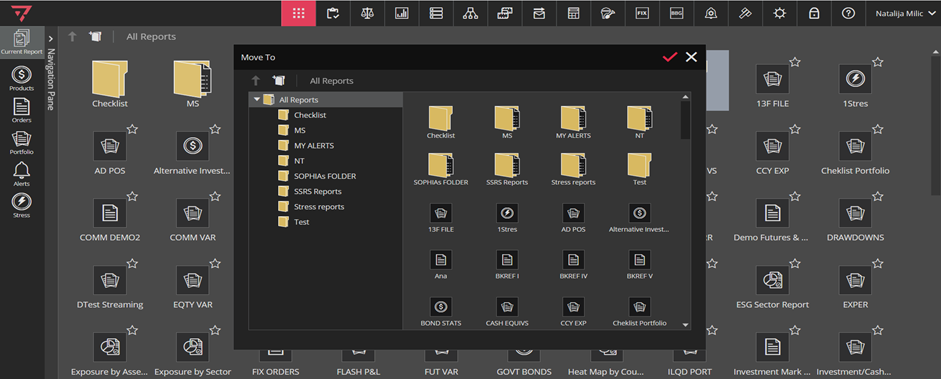
Move to gives you the list of available folders to move your folder to.
Delete:
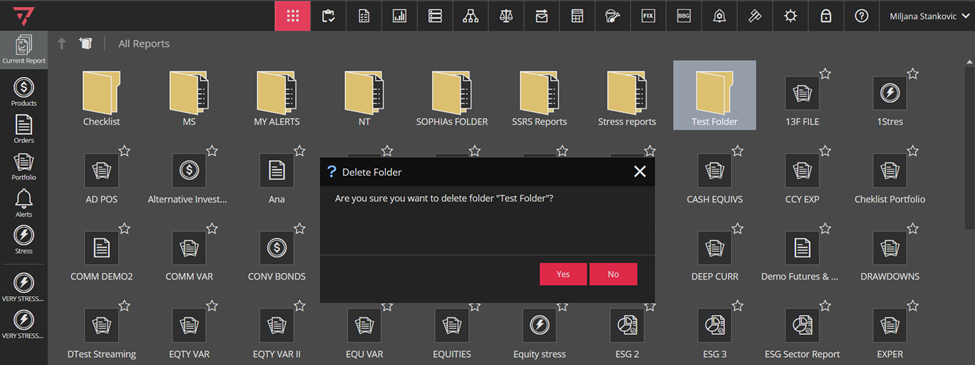
Please note that you can delete folder only if it has no subfolders or reports saved in it.
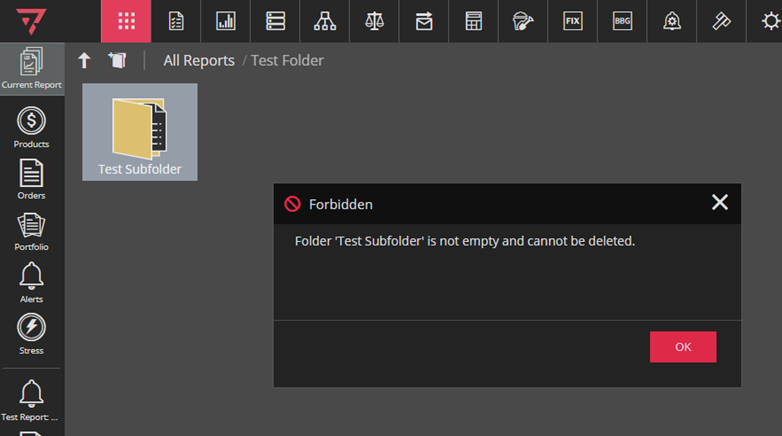
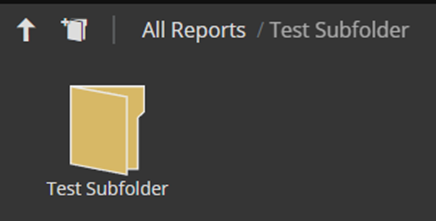
Any folder can have subfolders.
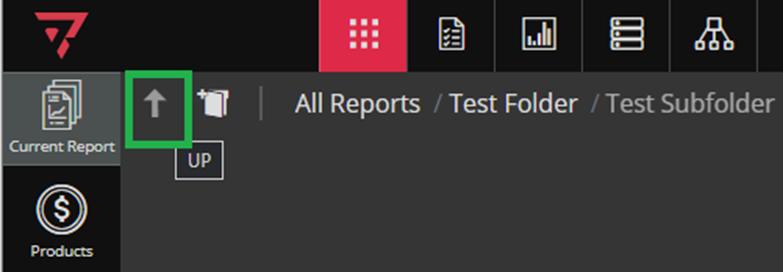
To navigate back from subfolder to main folder, use the UP icon on the top left.
The area under “All Reports” shows all your custom reports that you have saved. To learn how to build these reports, head over to Building your Own Gridview.
