
The FIX Decoder pops up as a little form where you decode FIX messages.
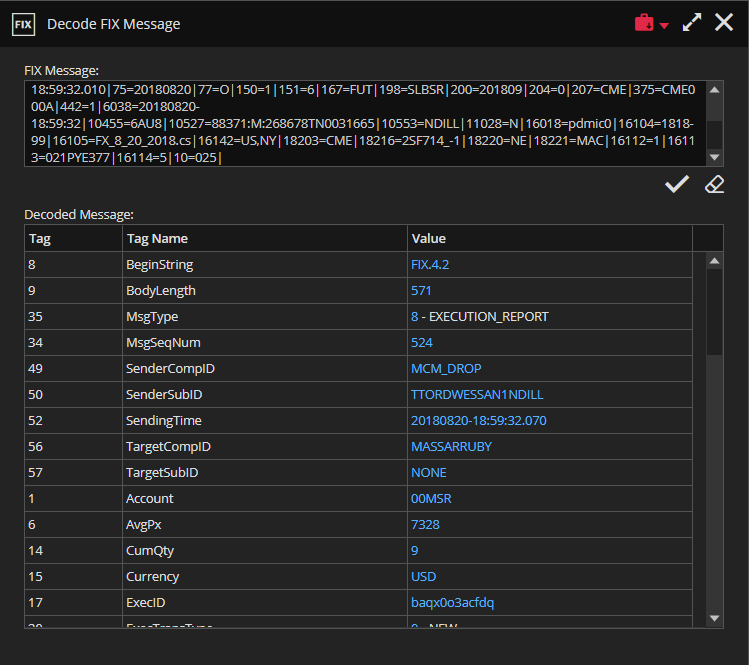
To access the FIX Decoder, click on the icon marked green in the singleton modules toolbar, as in the screenshot below.

After clicking the icon, a window will open as in the screenshot below.
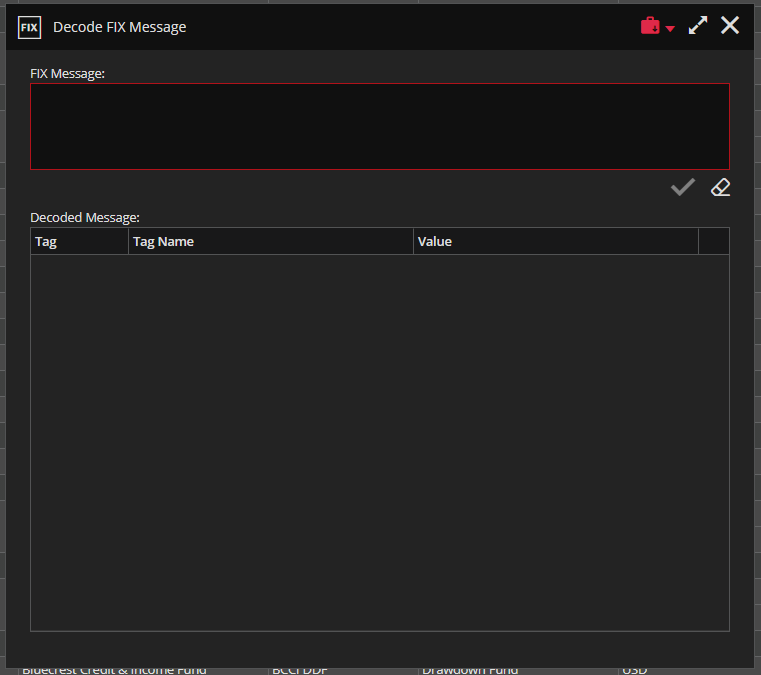
In the FIX Message section, enter the FIX message you want to decode.
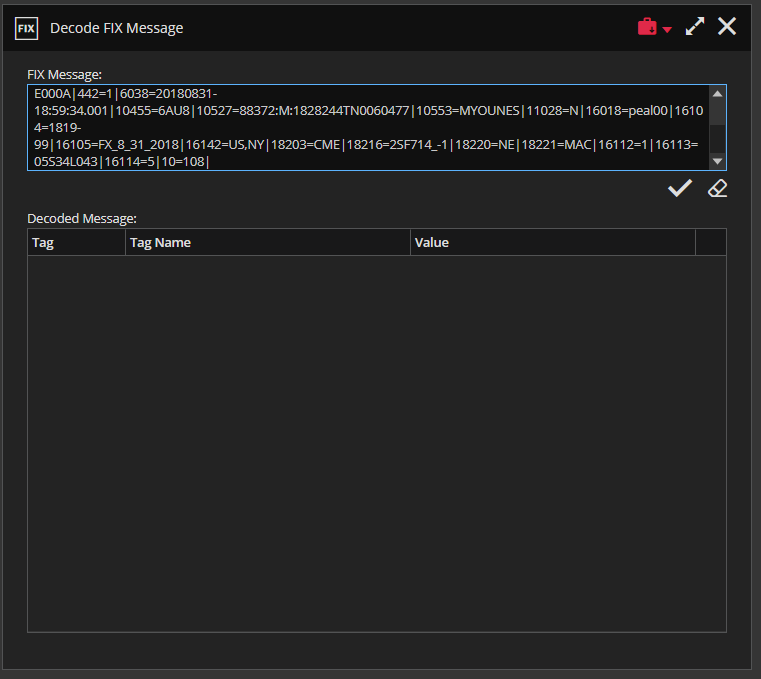
After entering the FIX message, clicking the “Decode FIX message” button will decode the message.

“Decode Fix Message” icon – located in the lower right corner below the FIX Message section

“Clear” icon that is used to delete the FIX message entered in the FIX Message section.
In the “Decoded Message” section, you can see the data decoded from the FIX message according to the FIX Dictionary. An example of a decoded message is shown in the screenshot below.
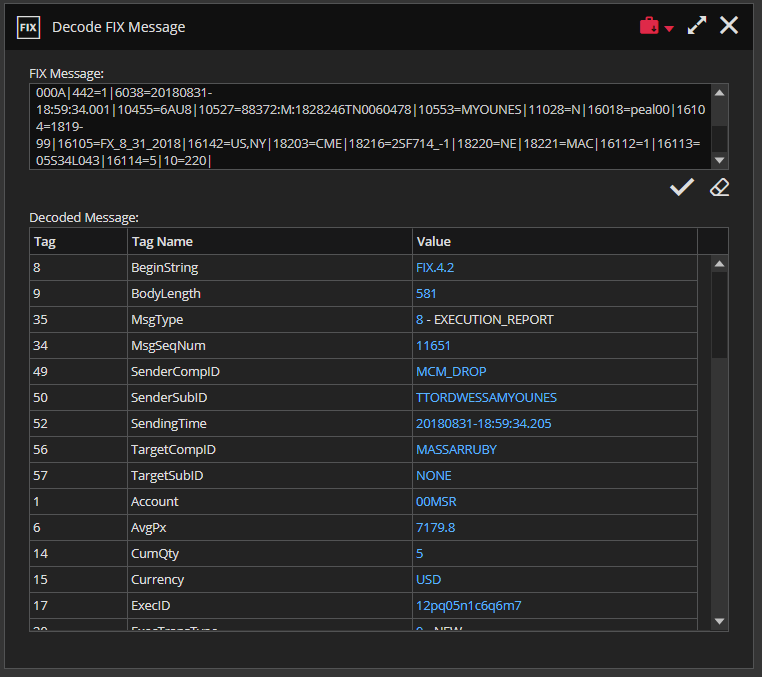
Ruby will also allow you to open FIX Decoder on double-click from FIX message field in Fills tab.
