
Orders Module lists all the orders ever placed through our system. It allows you browsing the desired orders, creating new, manipulating with existing ones etc.
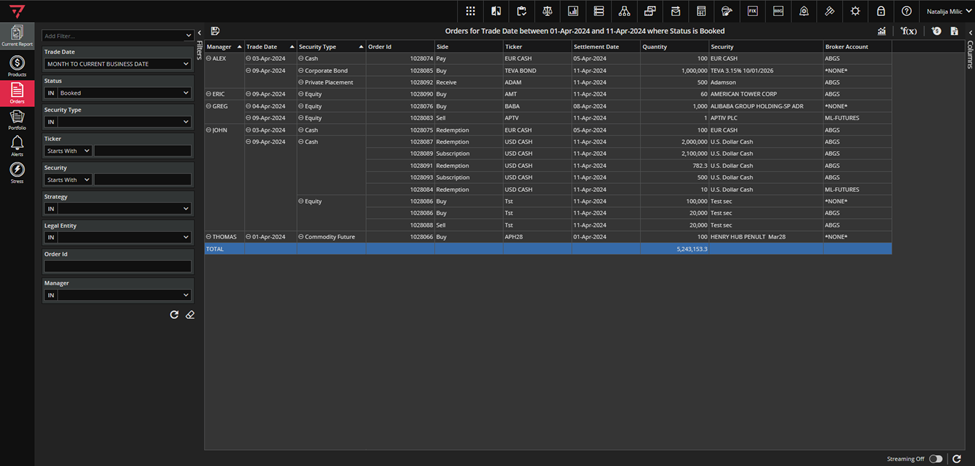
Depending on security type you can book: trades, investments, cashflows or repos. These forms look similar and use same trading principals, and Ruby already knows, depending on the security type, which forms to open when you perform booking actions.
If security is tradable (Equity, ETF, options, bonds, futures) there is an option to book trades. However, you can book cashflows for some tradable securities like equities or bonds.
If security is investable (funds, Real Estate, Private Placement) you can book investments and cashflows. Drawdown Fund is an exception and you can book only investment order against it.
You can book repos for all types of bonds (Corporate Bond, Municipal Bond, Convertible Bond and Government Bond).
Manually Booked Orders
There are a couple of ways to manually book an order using Ruby.
First way is to navigate to Products, find desired security you want to book order against, and then right-click on it.
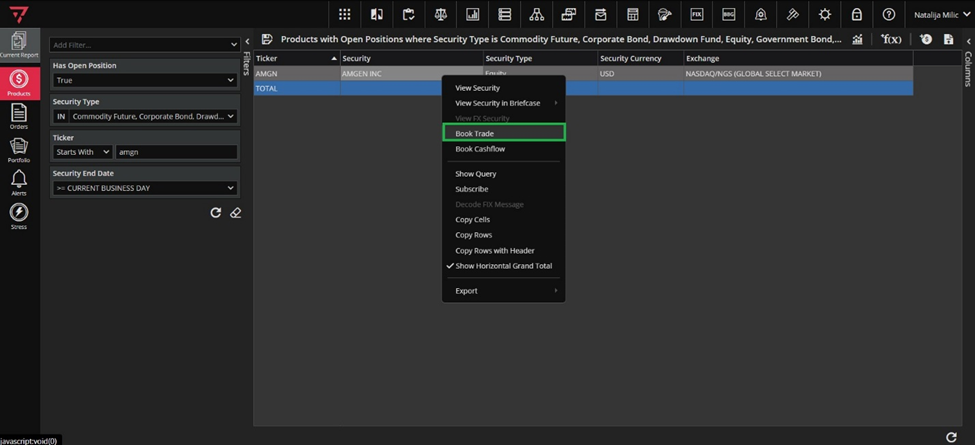
Context menu will offer option Book Trade. Depending on the security type, this same option will read Book Investment if you have chosen an Investable security. If supported, Book Cashflow or Book Repo will be offered right below. Now, choose your order type and access the form by clicking on Book Trade or Book Cashflow.
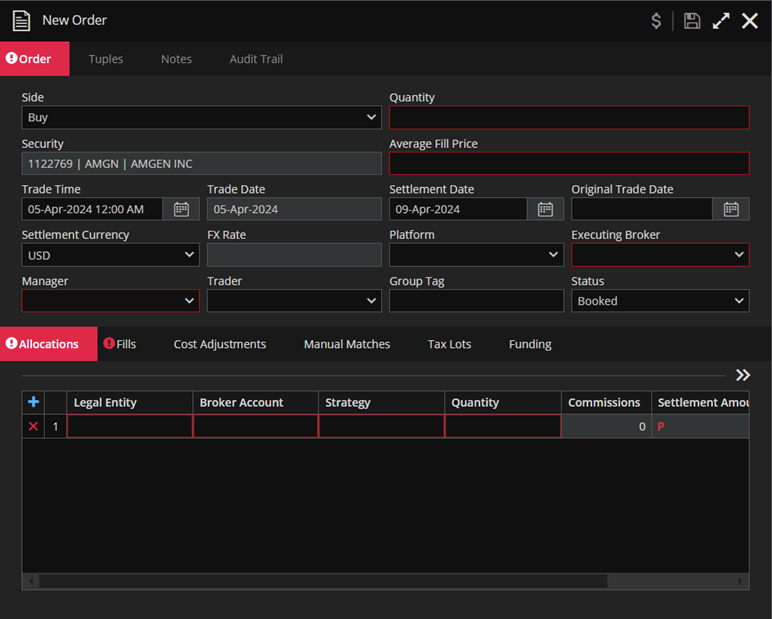
When you create a trade, Trade Time will default to today’s date, the same goes for Trade Date. By clicking on Calendar icon in the Trade Time field, you can choose the desired date and the Trade Date will change accordingly.
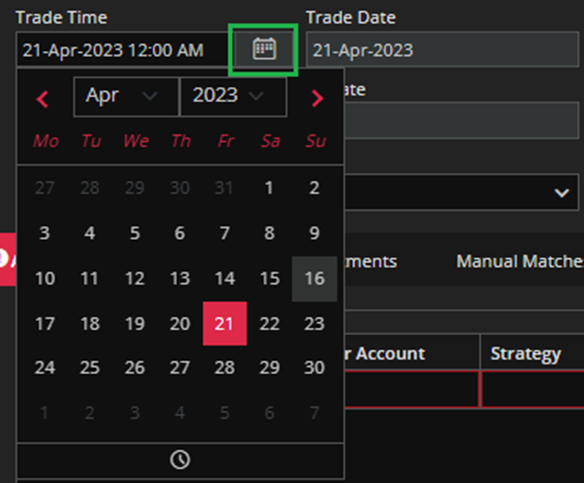
You can enter the precise time of your trade by selecting the clock icon.
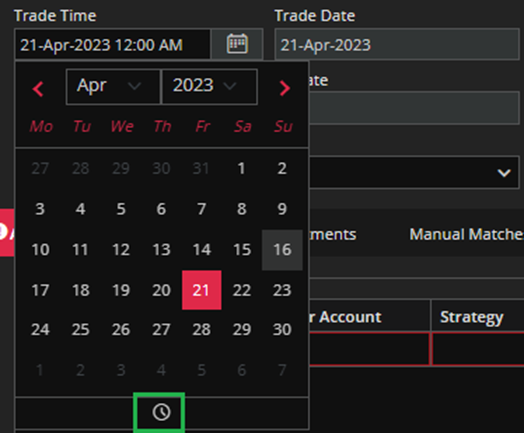
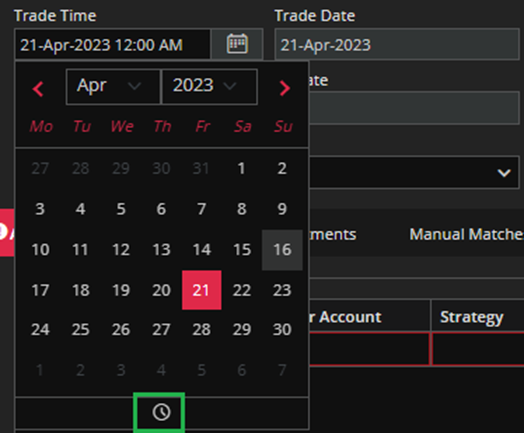
If Trade Time is set for Friday evening, it defaults to Saturday, and if Trade Time is set for Saturday morning, it defaults to Monday.
The list of available Traders is controlled through the Trader flag – which is set in the user form in Permissions module .
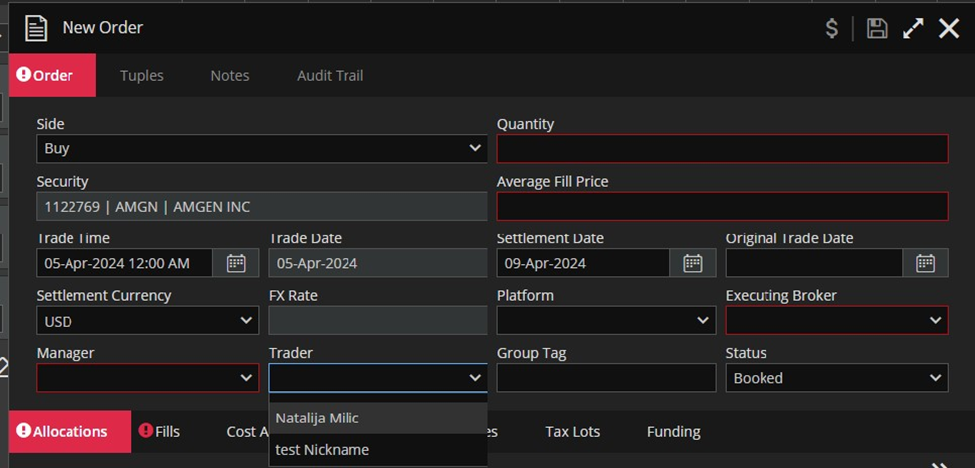
Red bordered fields are mandatory and you cannot book your trade without fulfilling them at the minimum.
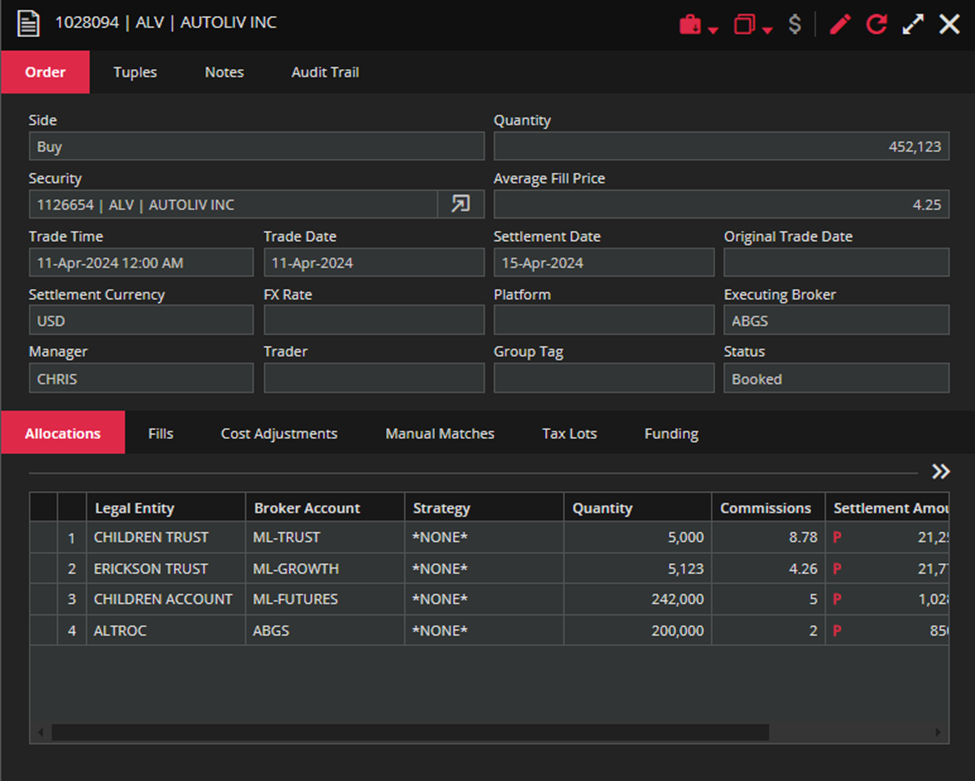
When you are creating an order-you can set different currencies for every order expense.
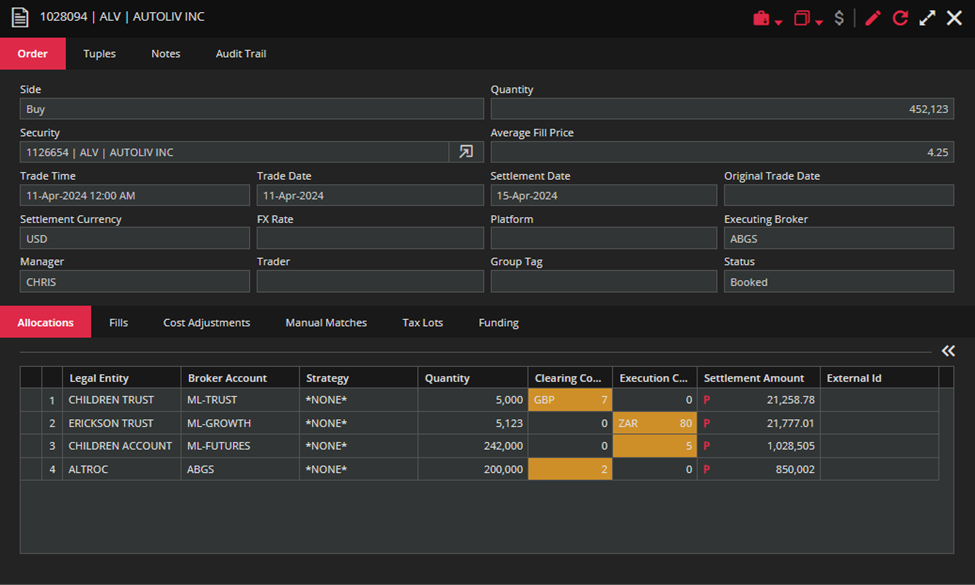
In cases where the expense currency differs from the settlement currency, the currency will be shown before the expense value in the cell.
Columns Commissions and Fees which represent the sum of all commissions and fees, are always in the settlement currency. If some order expense is not in the settlement currency it will be converted to the settlement currency before summing.
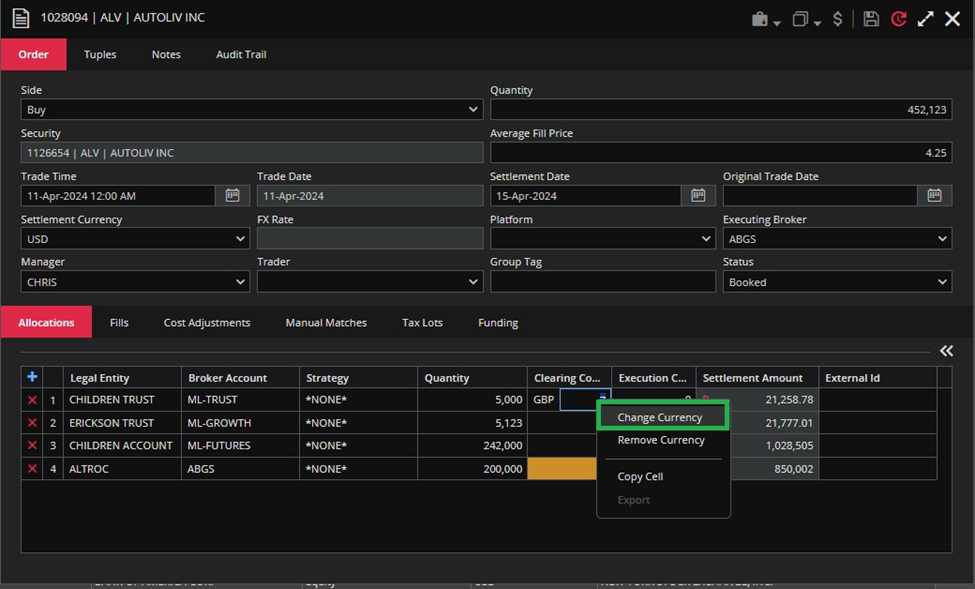
When you want to change the expense currency, use the Change currency action from the context menu.
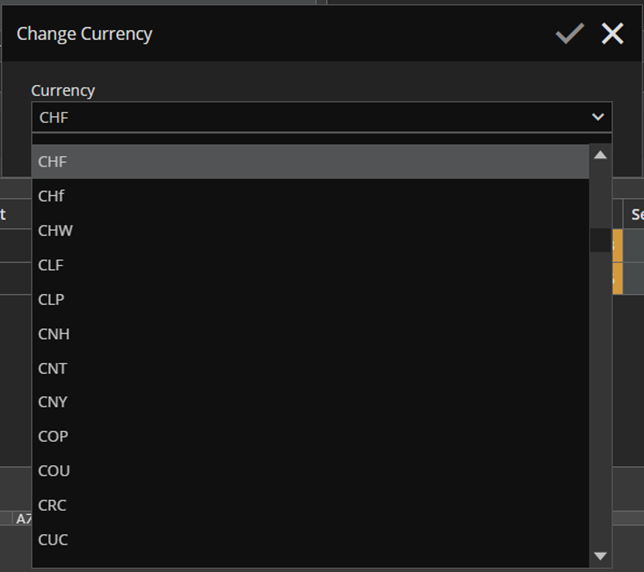
After that, a pop-up will appear allowing you to choose the desired currency from the dropdown menu.
The Remove currency action will be disabled if the expense is already in the settlement currency.
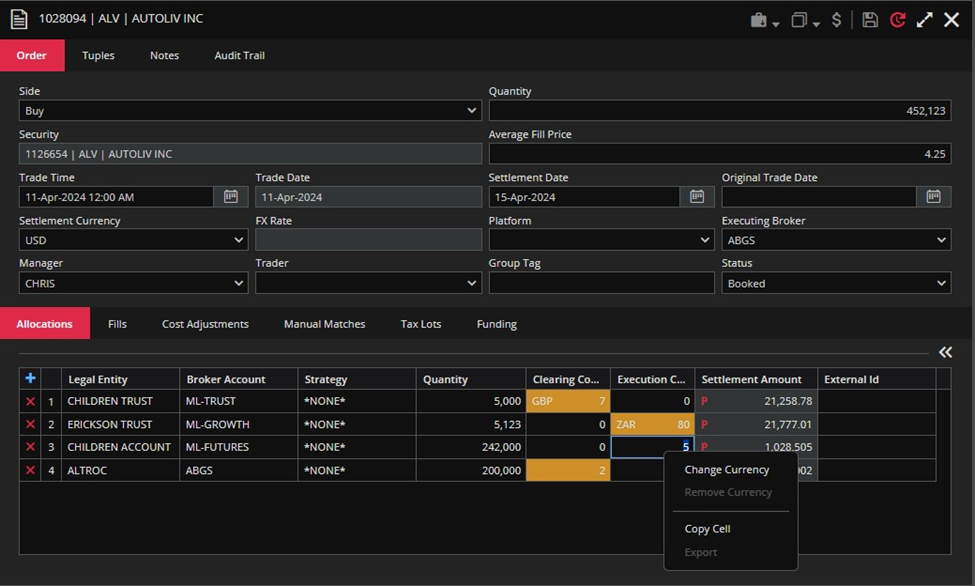
Both Change Currency and Remove Currency actions will be disabled when the expense doesn’t have a value or it wasn’t manually changed.
There is a toggle field in the Allocations tab, Broker Account Number, that will show you the account’s number. This field will be shown when you perform a right-click action in the grid and choose Show Broker Account Number action.
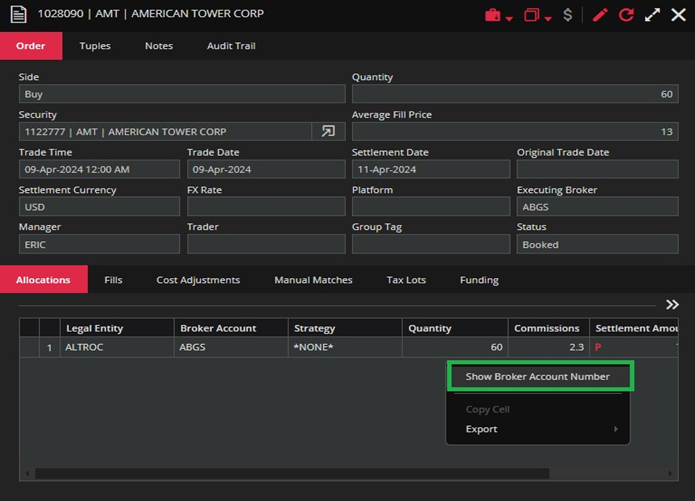
The Broker Account Number information is fetched from Configuration module. The Broker Account field will be hidden when the Broker Account Number field is displayed.
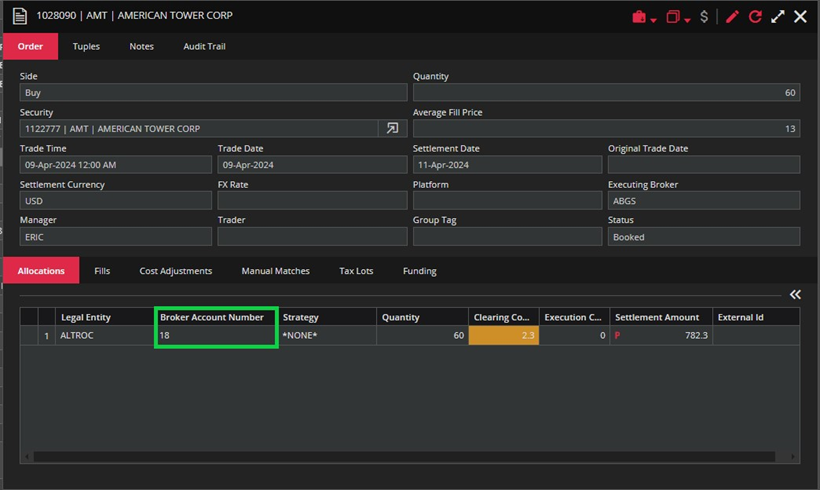
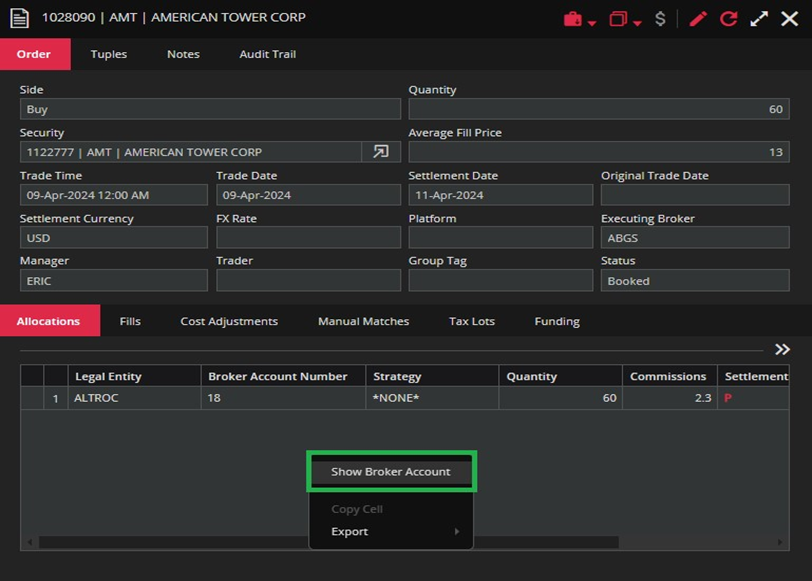
Show Broker Account action will show the Broker Account field again. Keep in mind that these changes are read-only.
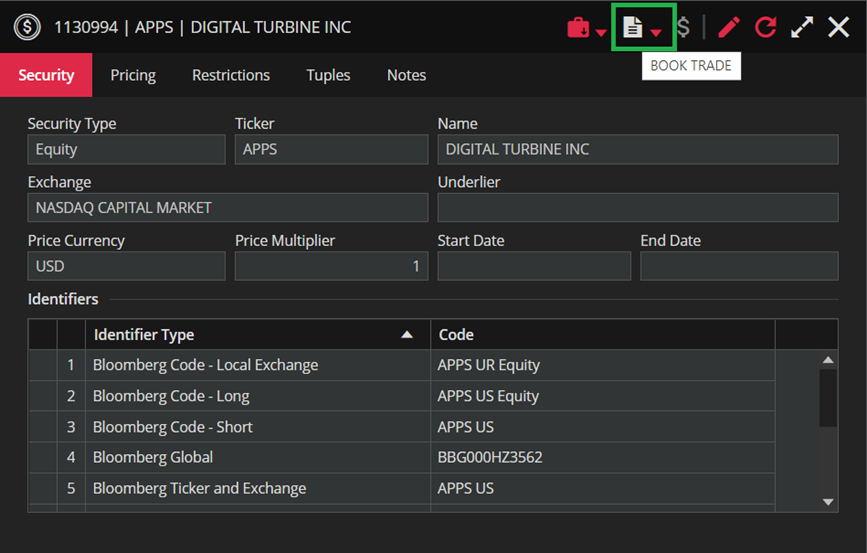
The other way to book an order is directly from instrument`s header.
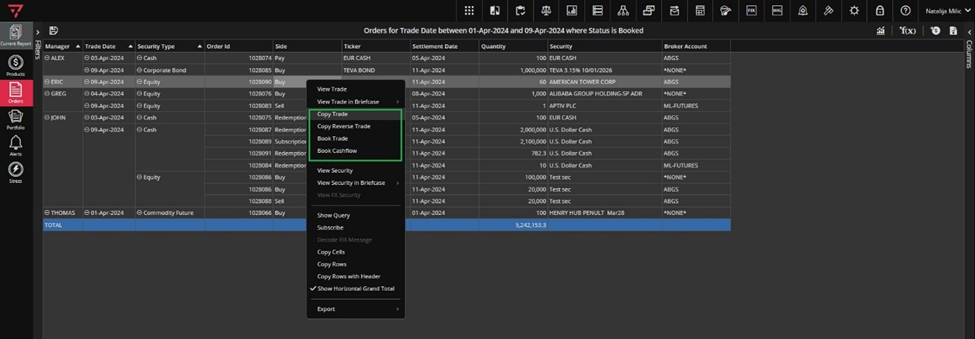
Another way to book orders is from the Orders module.
Automated Booking of Orders
We are also offering automated booking of orders – through the Loaders Section, or through the ETL.
You can access Loaders from the shortcut in the menu on the right side of the report`s header.
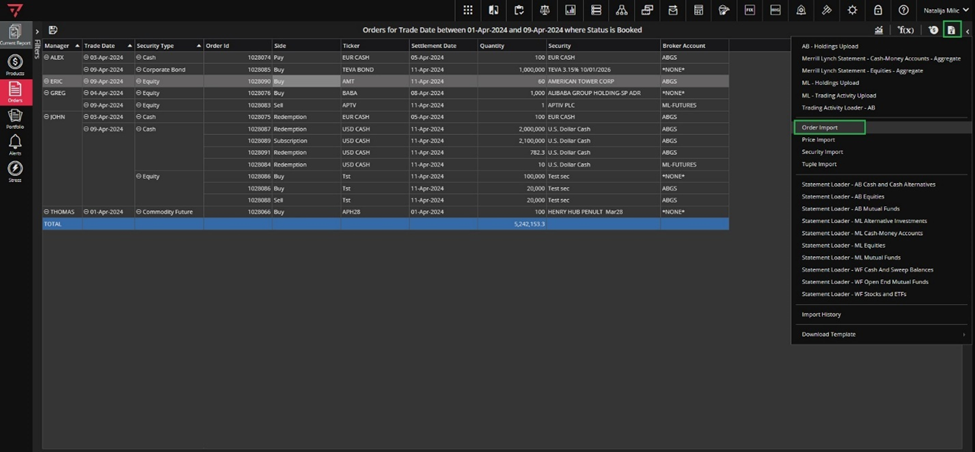
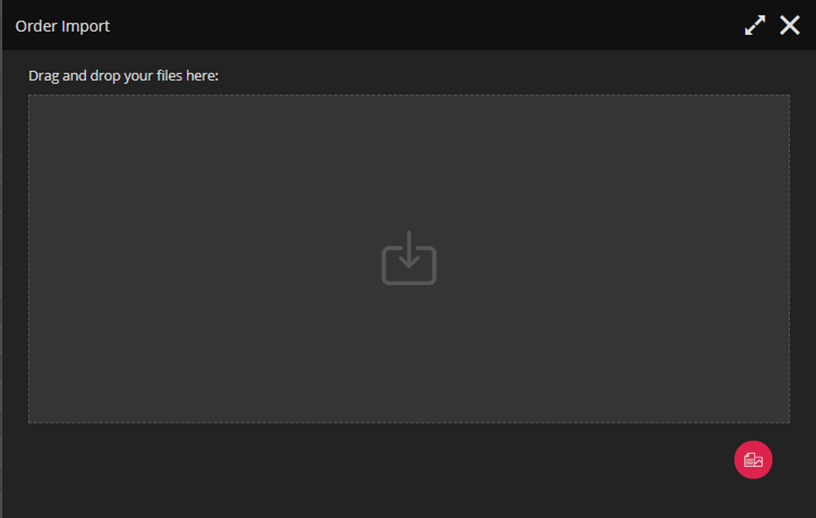
After you have clicked, you can either drag and drop your files into this screen, or you can use the browse icon to attach you files. It should be noted that there is an option to import multiple files at once which is described in detail in th Importing data into RUBY section.
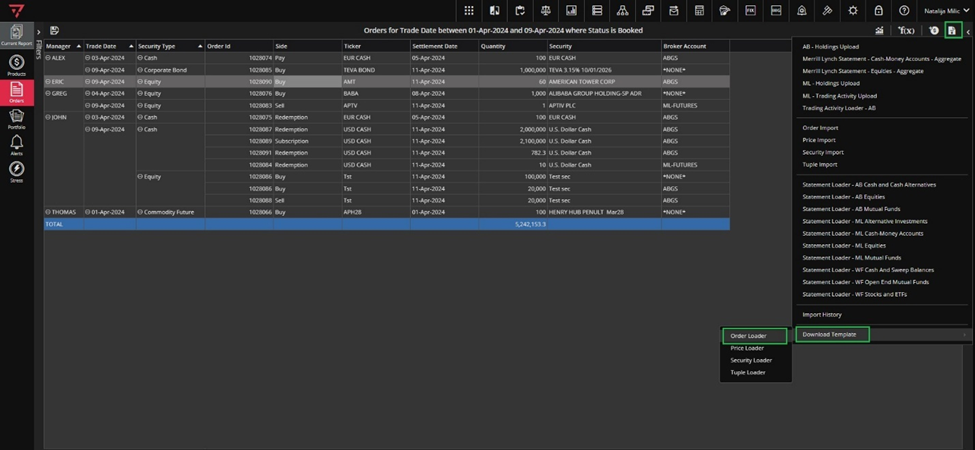
For a file template, please use the template provided in the same menu where you can access loading orders (see screenshot below).
Once booked, your orders will be available in Orders module. In case you want to access them later, please use filtering and searching principles described in: Finding an order section.
