
The Rules module allows you to set up different types of rules that you can use across the application in various manners.
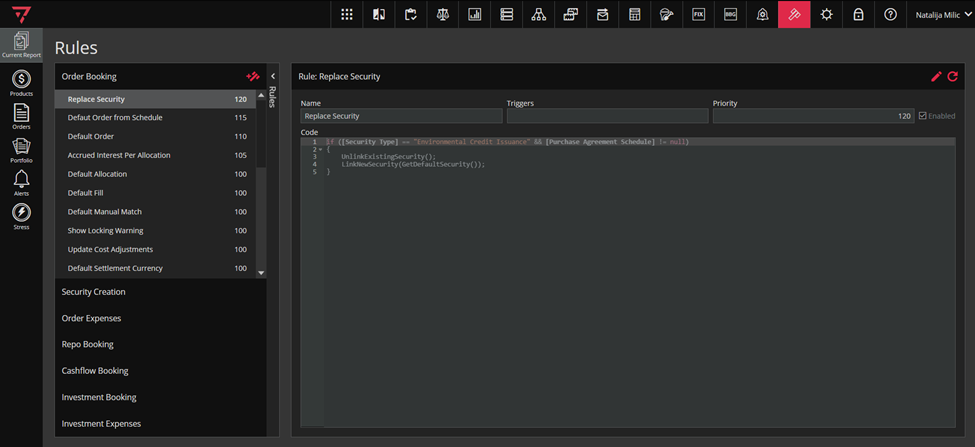
Rules are used, in general, for pre-populating forms, and adding the validation for fields in order, security or other forms across the application. To access the Rules module, click on the icon marked green in the singleton modules toolbar, as in the screenshot below.

When you open the Rules module, the module will look like the screenshot below.
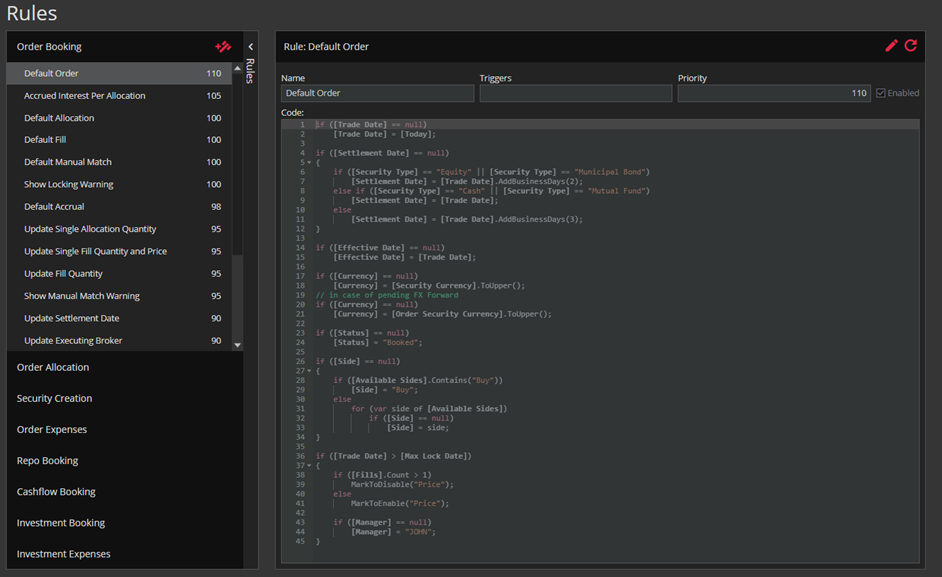
In the Rules curtain, there are tabs with groups of rules, also called Accordions. These tabs are Order Booking, Order Allocation, Security Creation, Order Expenses, Repo Booking, Cashflow Booking, Investment Booking, and Investment Expenses. These tabs are set by developers and if you need to remove or add any – please contact our Support Team. On the right side, you can see details of the selected rule.
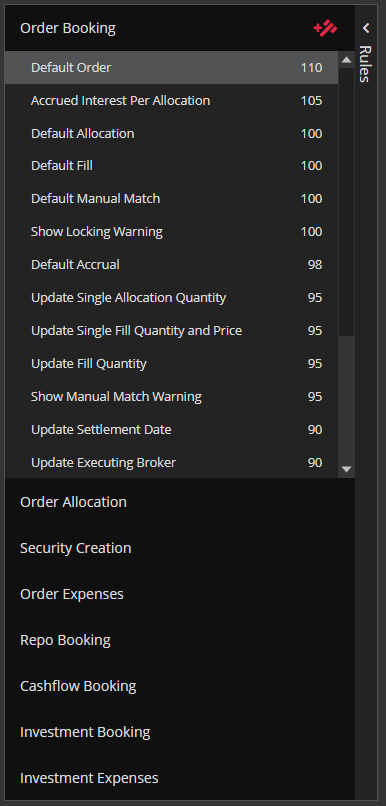
In every tab`s header, you have a button to create a new rule (showed in the screenshot below). Your rule will be created in the tab from which header you clicked the “ADD RULE” icon.

Now, let`s talk about setting up the new rule. After you clicked „ADD RULE” icon, the New Rule form will be opened in the right side of the screen, as in the screenshot bellow.
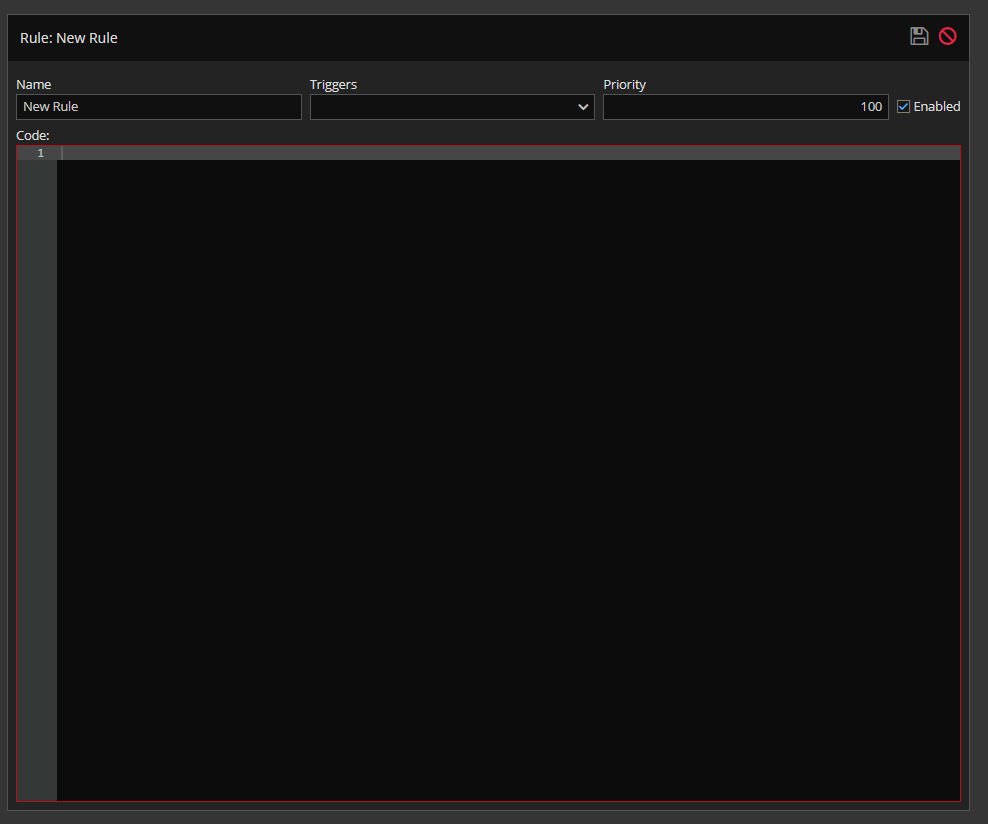
Name field is for rule`s name.
The triggers field is there to set triggers for your rule – for example, if you choose only Price, the execution of the rule will be triggered only if the Price field is changed.
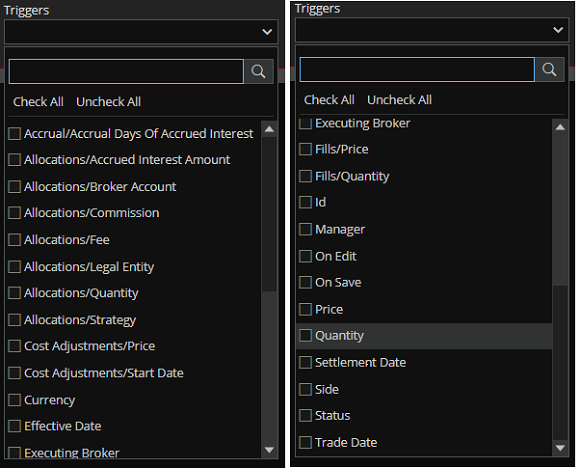
In Priority field – you set priority for rule. The larger the number, the higher the priority is. In the tabs, the rules are sorted by priority, highest to lowest. Rules with the highest priority are executed first.
In Enabled checkbox – you enable rule execution.
Rule can be deleted by clicking on the ‘X’ button that appears in front of the rule’s name on hover.
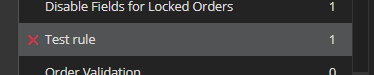
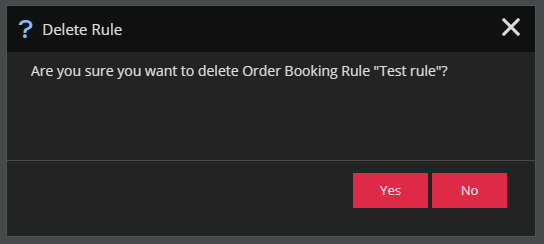
After clicking on the ‘X’ a popup will appear with a confirmation question.
When a form is initially opened, not all rules are triggered but only those without triggers. Thus, rule engine has a mechanism to recursively call itself (in cases when rule engine has performed some changes on some properties – it calls itself once again and sets for a trigger for that execution the property that was changed.
