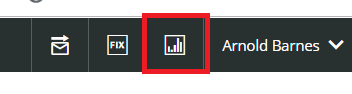
The SSRS Module will take you to the Reporting server.
To access SSRS Reports, click on the icon highlighted in red on the upper right corner.
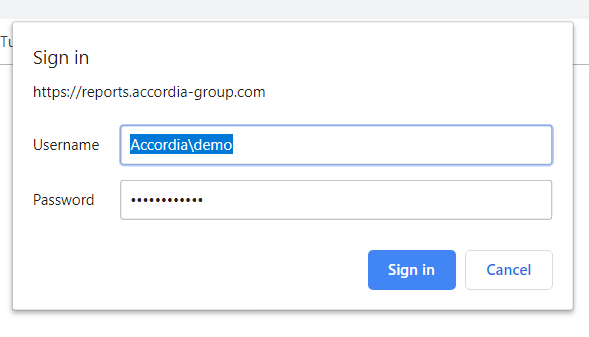
You may get the following sign-in prompt. Your password should be saved on your computer, so just click sign-in. If you need a new password, please contact our Support Team.
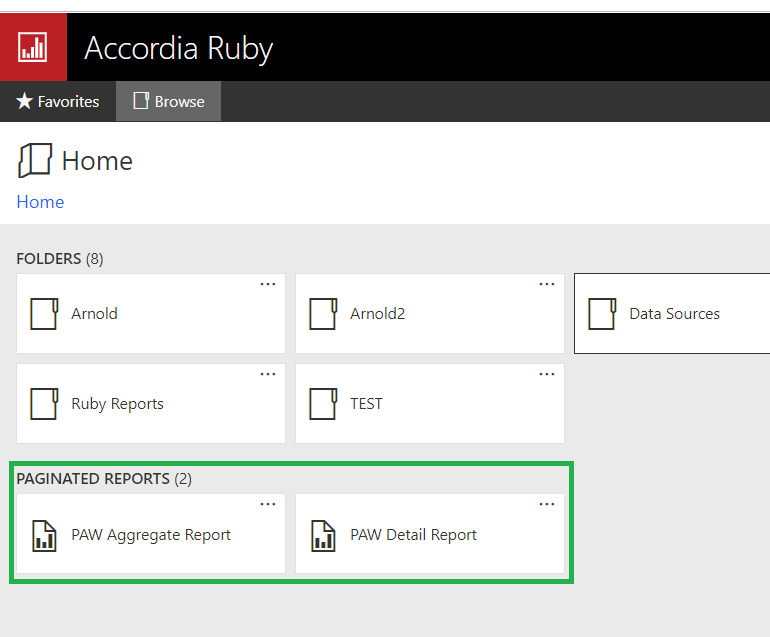
Once logged in to the reporting server, you are going to see a screen like the one below.
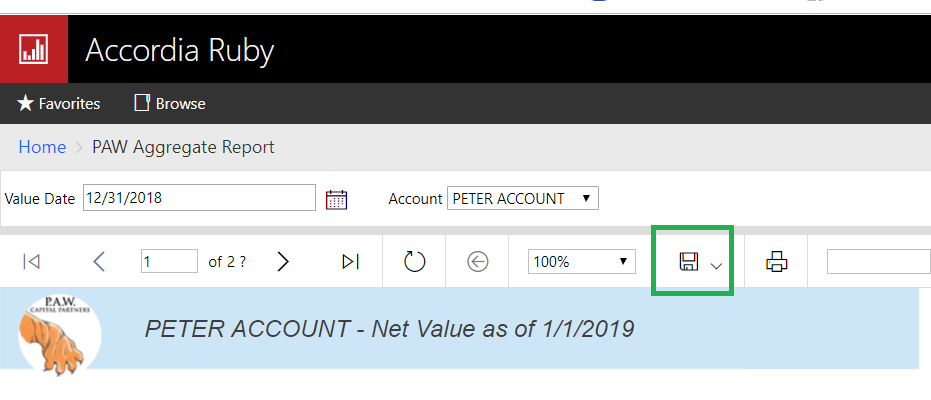
Once you click on the report you want to run, it will automatically run with default parameters. In the case of the Aggregate Report, that would be Value Date 12/31/2018 and Account PETER ACCOUNT. If you want to run for, say WENDY ACCOUNT, select it in the Account dropdown list and click on the “View Report” button all the way to the right.
If you want to print the report, you should export it to PDF first by clicking on the “diskette” button boxed in green below, and then print it from Adobe to make sure it prints correctly.