
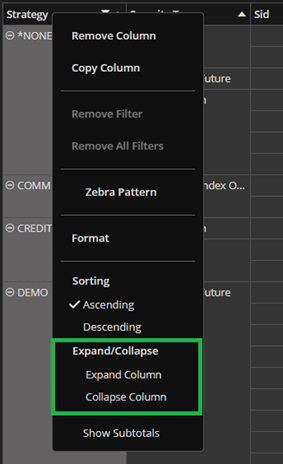
Expanding and collapsing of data is available in the context menu over the Row Labels column`s header. The Expand/Collapse section is marked with green in the screenshot below.
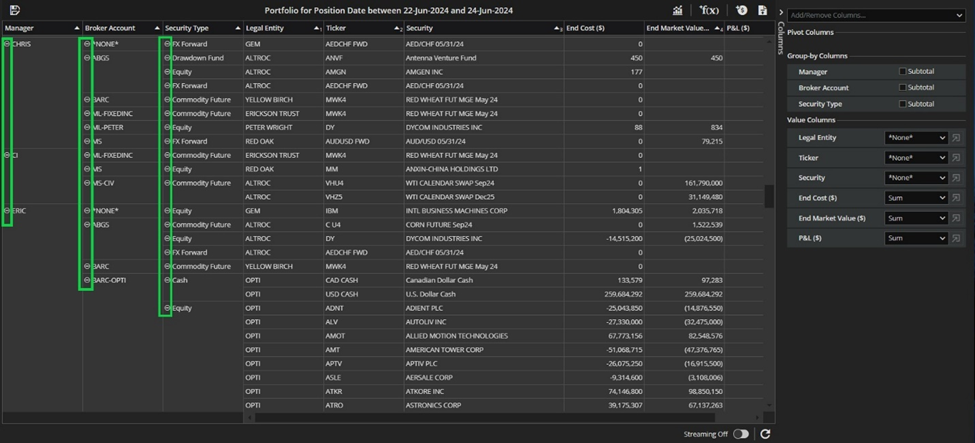
If you take a look at group-by columns you will notice icon ‘-‘ next to the fields values. That means that action Expand/Collapse is available.
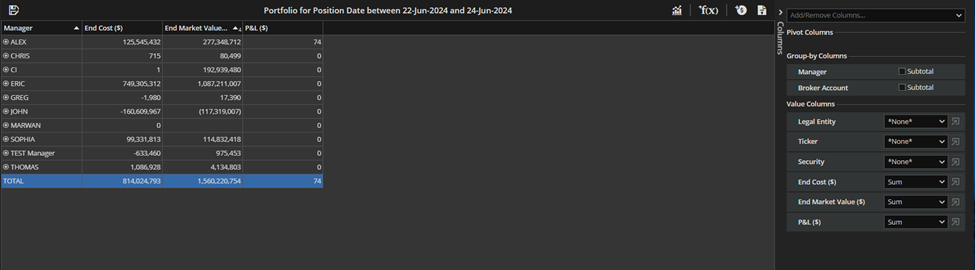
By applying action Collapse Column you get the collapsed view. The ‘+’ icon next to the fields values means that the collapse has already taken place.
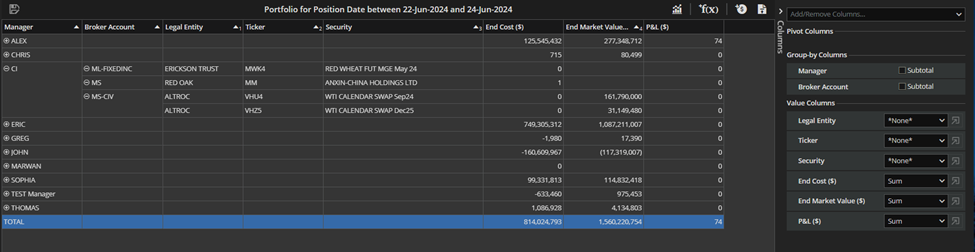
Then you can apply action Expand Column from the context menu and you get the view before collapsing was performed.
You don’t have to collapse all at once. By clicking on sign ‘-‘ to the desired field you perform collapsing and by clicking on sign ‘+’ you perform expanding of the data.
When we do not have any columns with aggregation *None* in Value Columns section, we do not have expand/ collapse buttons. However, we do have actions in the context menu of the group-by columns.
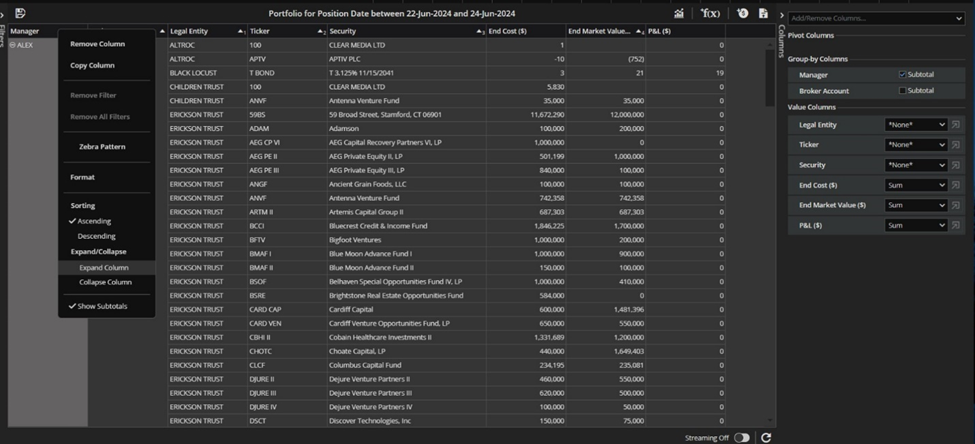
In case all the value columns have aggregation *None* then we don’t have an expand/collapse icons, but we do have options in the context menu of the group-by columns.
When we have neither vertical nor horizontal collapse then we do not have expand / collapse icons. We certainly have Expand/Collapse actions in the context menu but after expanding or collapsing there is no change in the grid-view. In other words, if there are not additional columns to show (there is nothing to expand to), the expand/collapse icons will be hidden. If we have both or at least one collapsing then we have ‘+’/ ’-‘ icons in the fields.
The criteria for hidden columns in the collapsed view (columns that are hidden in collapsed mode, but shown in expanded) it’s based on aggregations for that column. Of course, the expanded version has more columns than the collapsed one.
Say you have one column in Pivot Columns (Manager for example), few columns in Group-by Columns (Ticker, Legal Entity, Security Type, Broker Account) and few more Value columns. In that case the Expand/Collapse actions are not offered in the context menu on that last grouping column in the pivot.
